Couples Journal App: How to Use COUPPLY Memories
A couples journal app gives the two of you one shared place for photos, videos, and the words that go with them, so your story doesn't end up scattered across two camera rolls and a chat history. In COUPPLY, that place is called Memories: a shared photo journal for couples where you can upload pictures, write about the day, and find any moment again in seconds.
This guide covers how to start a couples journal, then walks through Memories step by step, from the top page to uploads, tags, favorites, and display settings. You'll also find couples journal prompts for the evenings when you open the app and aren't sure what to write. It works the same for both of you, whichever phone you each have.
Disclosure: COUPPLY is made by us. Everything below describes how the app works today; the full reference is in COUPPLY Help: Memories.
Key takeaways
- Memories is a shared photo and video album with a journal, tags, favorites, and a map of the places you went.
- A "memory" works like a folder with a journal entry: title, dates, text, places, hashtags, and photos.
- Photos and videos are saved at original quality by default.
- COUPPLY is free for both of you on iPhone and Android, with 3 GB of shared storage and end-to-end encryption.
- Not sure what to write? Use the couples journal prompts near the end, from everyday moments to appreciation.
Why keep a couples journal
You remember more together. Each of you notices different things on the same day. A shared journal keeps both versions, and reading your partner's side is often the best part.
Ordinary days matter later. Trips and anniversaries get photographed anyway. The quiet Sunday or the first dinner in a new apartment is what you'll wish you'd written down in five years.
It's a gentle way to say thank you. Writing "the day you surprised me at the station" is appreciation your partner can find and reread whenever they like.
It's easier to look back. With dates, tags, and places attached, you can answer "When did we go there?" without scrolling through thousands of photos.
How to start a couples journal together
Paper journals are lovely, but only one of you can hold the notebook. A couples journal app lets both of you write from your own phone, add photos, and read each other's entries whenever you like. To get started:
- Both install the app and connect. Download COUPPLY on iPhone or Android and connect with your partner. Memories is ready right away.
- Agree on a light rhythm. Weekly is plenty. Some couples write after every date or trip; others add a line on Sunday evenings. Don't pressure yourselves to write every day.
- Talk about what you'll share. Everything in Memories is visible to both of you, so agree on the tone: playful, honest, or both. Keep entries kind, since your partner will read them.
- Make your first entry today. Pick a photo from last weekend, write two or three lines, and add a hashtag. That's a journal.
- Take turns. Alternate who writes, or answer the same prompt separately and read each other's answers.
What you can do in Memories
Here's what Memories, the shared journal in COUPPLY, can do:
- Upload photos, videos, and files to one shared album. Your partner sees them too.
- Create memories with a title, dates, a journal entry, places, hashtags, and photos. Split a long trip into sub-memories like "Day 1" and "Day 2."
- Write memos for days without photos: just a date and a few lines.
- Link memories to anniversaries, so they're also listed on that anniversary's page.
- Tag and search across titles, journal text, notes, and hashtags.
- Favorite items and memories with a heart, and see what you and your partner love most.
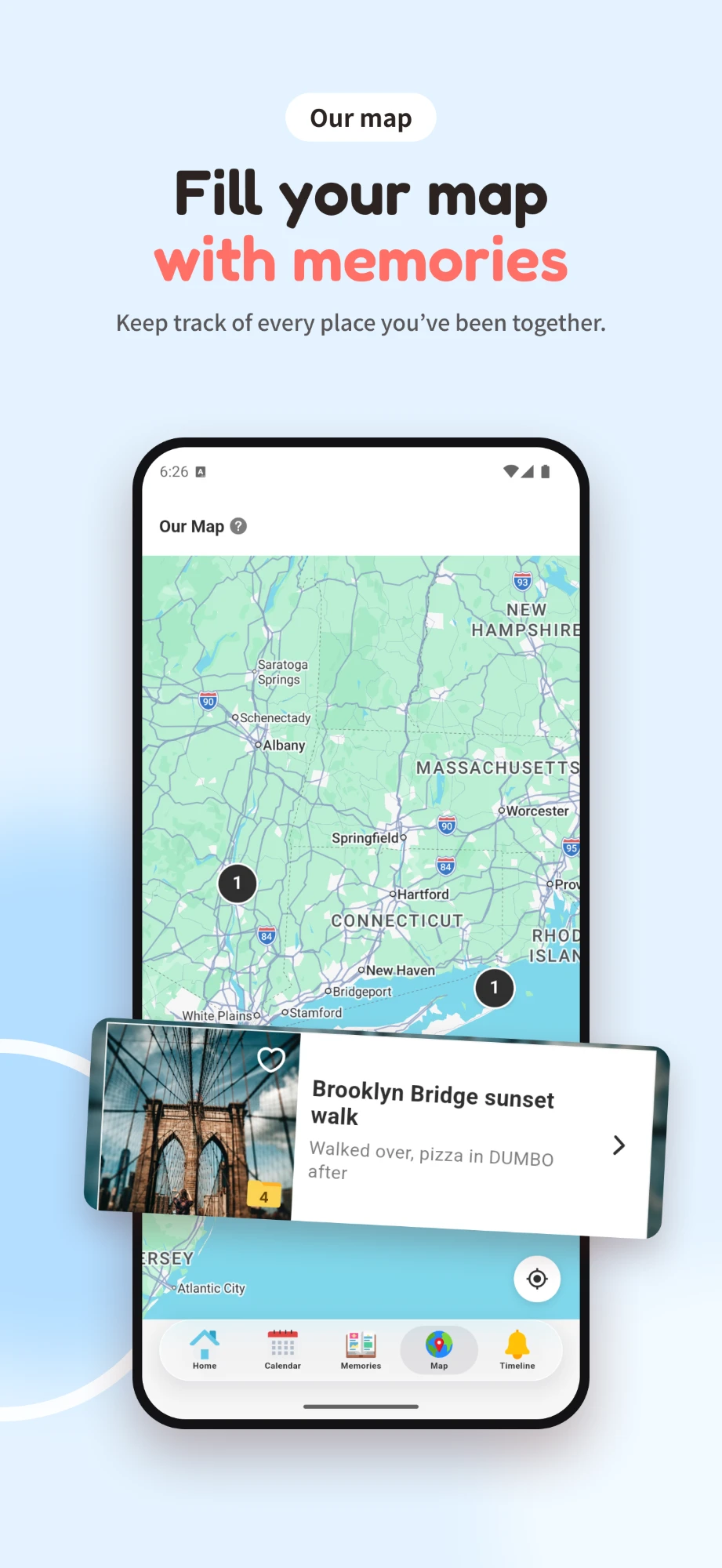
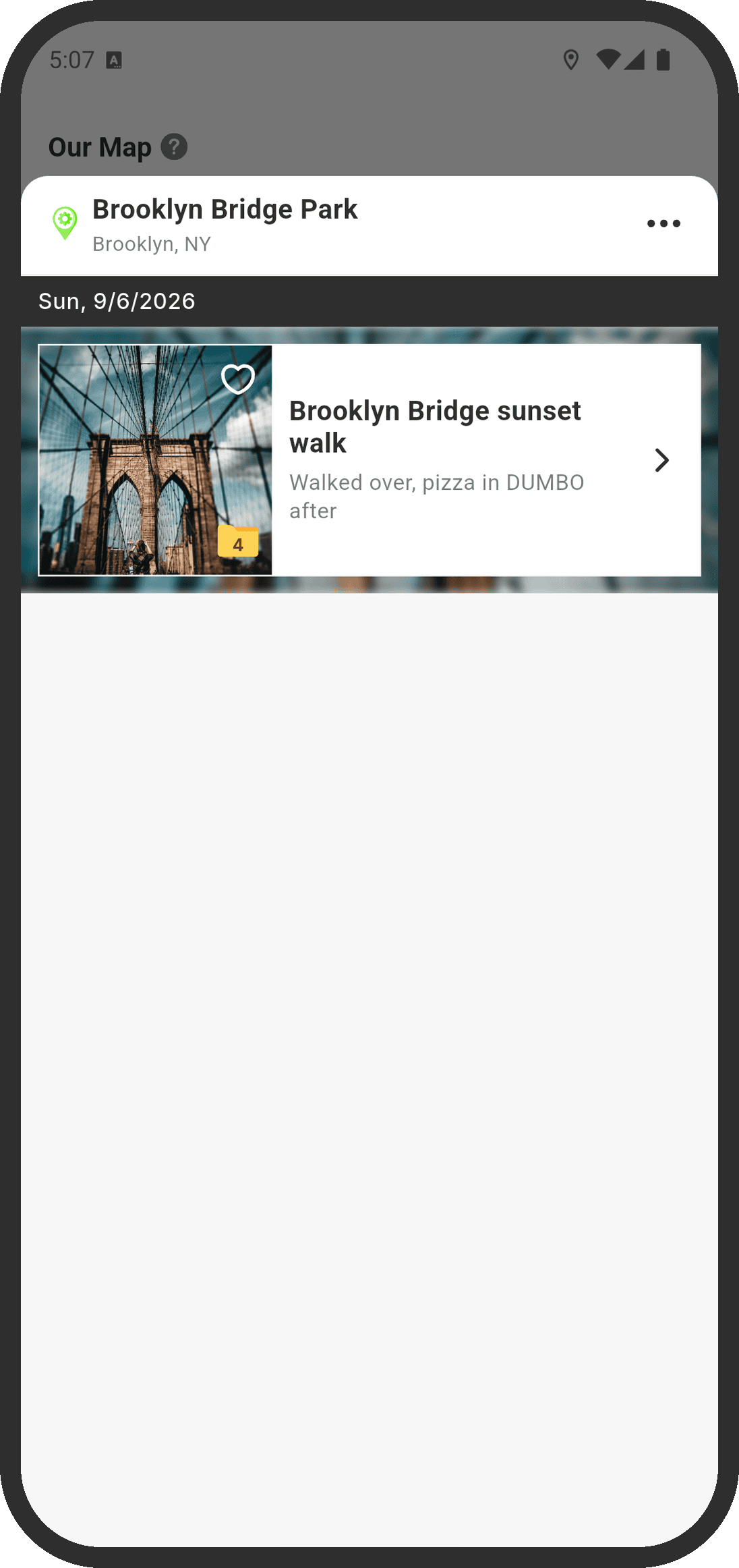
- See your memories on Our Map, grouped by place, and on the calendar.
- Free up space by removing already uploaded photos from your phone in one go.
1. The Memories top page
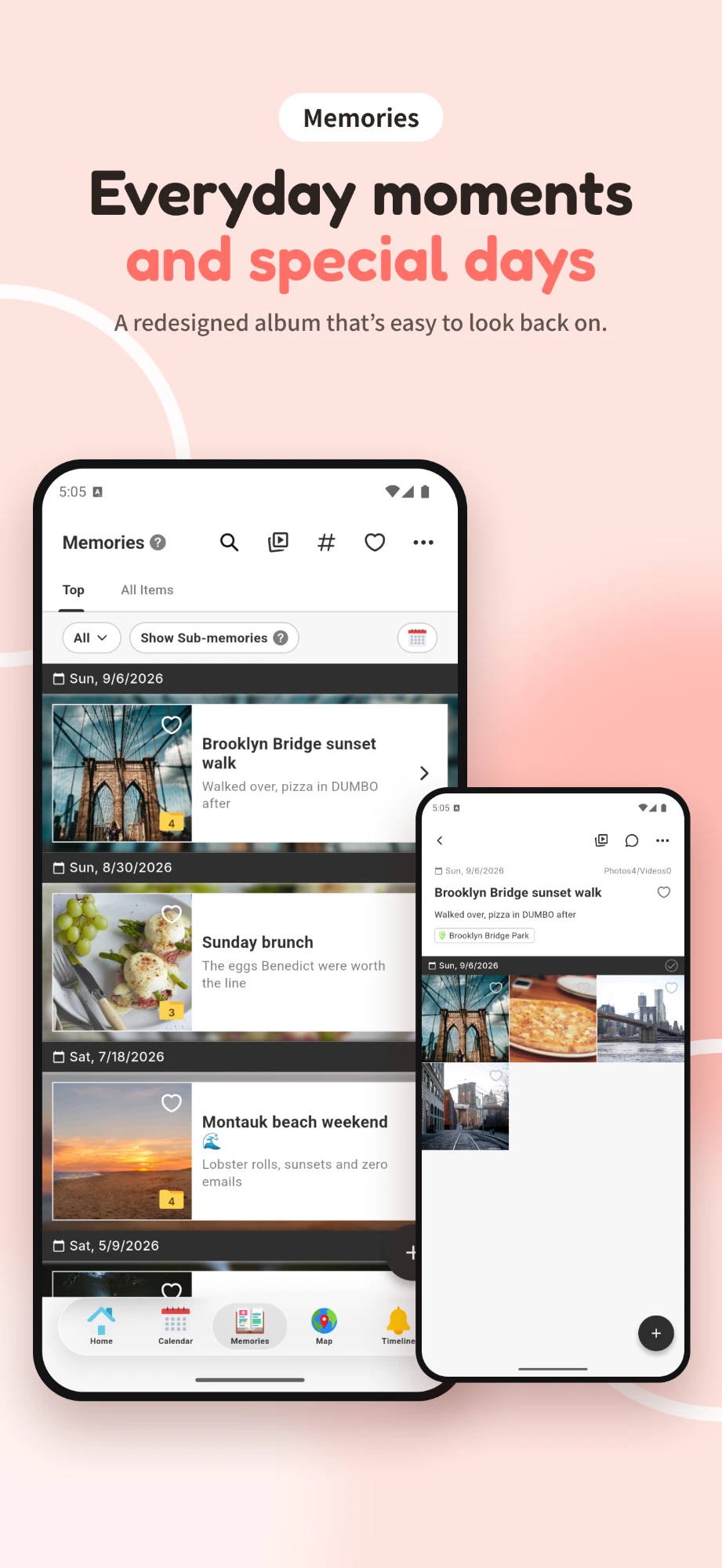
Open it from "Memories" in the bottom menu. The top page has two tabs:
- Top: your journey together in date order. Memories (which work like folders) and photos that aren't in any memory are listed here. Think of it as the desktop on a computer: you can upload straight to it and sort things into memories later.
- All Items: a gallery of every photo and video you've uploaded, including those inside memories.
The icons at the top open Search (titles, journal text, notes, and hashtags), Slideshows with music, the # hashtag list, and ♡ Favorites.

2. Upload photos and videos
You can upload first and create memories later, or the other way around. To start with your photos:
- Tap "+" at the bottom right of the Memories top page and choose "Upload Photos or Videos."
- Pick the photos and videos you want and upload them. Keep the app open until the bar at the top of the screen says it's done.
Where you tap "+" decides where things go: from the top page they go to Top, from inside a memory they go into that memory, and from a tag page they're uploaded with that tag already added.
A few things worth knowing:
- Quality: by default, photos and videos are saved at original quality without compression. To save space, pick a compression level in "Upload Settings."
- Weak signal: tap "Pause" on the upload bar and "Resume" later on Wi-Fi.
- Limits: the free plan has 3 GB of storage in total and a 50 MB daily upload limit. Each file can be up to 1 GB.
- More storage: COUPPLY PRO offers 100 GB, 500 GB, 1 TB, or 2 TB with no daily limit. See pricing.
3. Create a memory
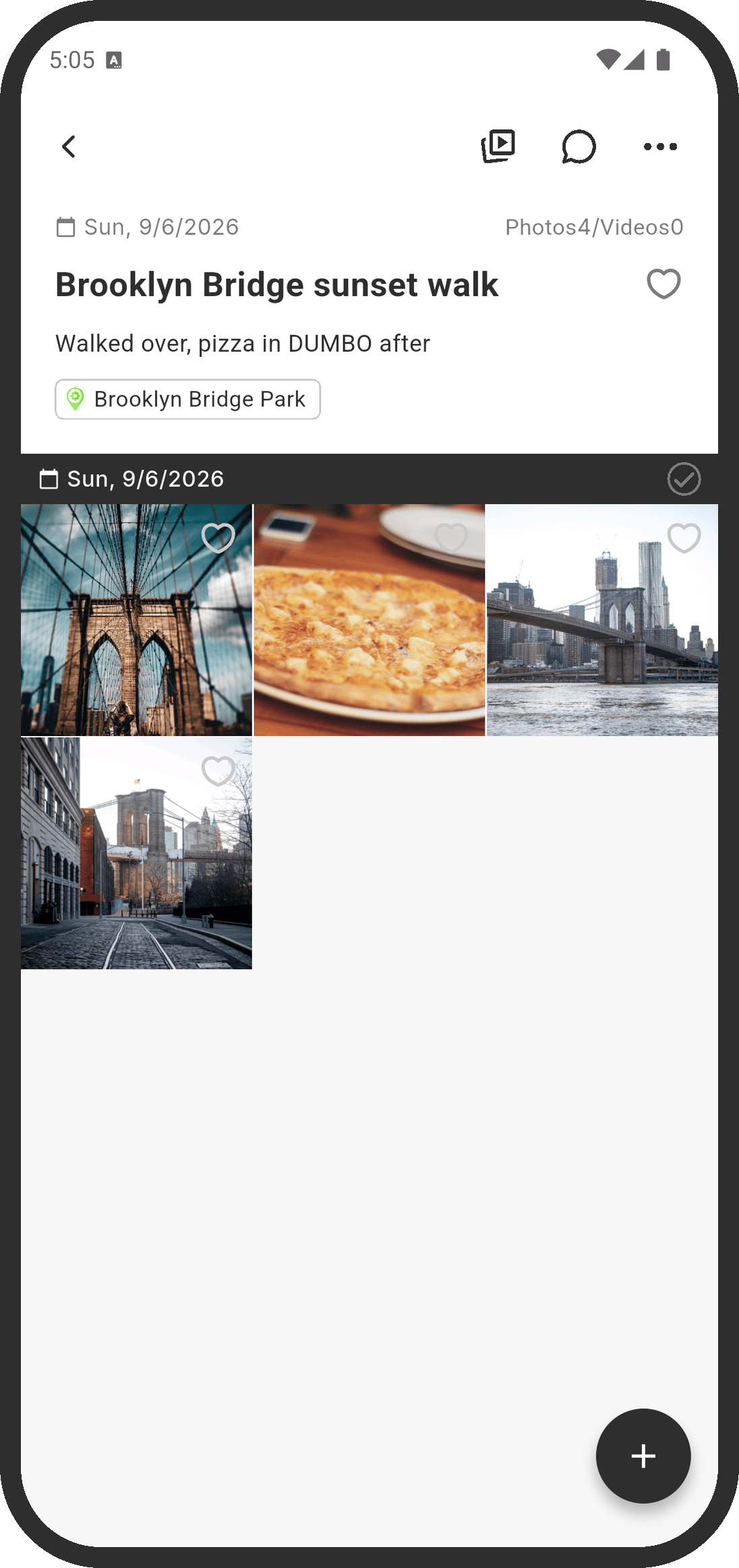
A memory is a journal entry and a photo folder in one.
- Tap "+" at the bottom right of the Memories top page, then "New Memory."
- Fill in what you like:
- Title (left empty, it's filled in from the date)
- Date: one day, or a start and end date for a trip
- Memory Details: your journal entry, links included
- Places: one or more places, which puts the memory on Our Map
- Hashtags and an Anniversary to link it to
- Photos and videos from your phone
- Save. Your partner gets a notification, and you can add photos any time later.
For a long trip, open the memory and use "+" then "New Sub-memory" to give each day its own entry.
Add photos to a memory
- Inside the memory, tap "+" and choose "Add Uploaded Items" or "Upload Photos or Videos."
- Or long-press an item anywhere, then use the album icon ("Move Items") at the top to move it into a memory.
Edit a memory and change the cover photo
- Open the memory and tap "..." at the top right, then "Edit Memory."
- To take a photo out of a memory without deleting it, long-press it, tap the trash icon, and choose "Remove from Memory." It moves back to Top.
- The cover photo is the newest item by default. To change it, long-press the memory in the list, or tap "..." and choose "Set Cover Photo."
4. Tag items and memories
Hashtags work like they do on social media: group photos, videos, and memories with words like "#trip" or "#selfie" and filter them later.
- Create a tag: tap "#" at the top of the Memories top page, then "+" at the bottom right. Choose a category such as "Family," "People," "Places," or "Important," and enter a name.
- Tag one item: open it, tap the note area at the bottom, and add hashtags on the details screen.
- Tag many at once: long-press an item to enter selection mode, select more, then use the "#" icon at the top.
- Edit a tag: in the tag list, long-press it and choose "Edit Tag." Choose "Show in the Memories Tab" to pin a favorite tag to the top page.
5. Favorite the best moments
- Add: tap the heart on an item or memory. Tap again to raise the count, so your top favorites rise to the top.
- Remove: long-press the heart.
- View: tap the heart icon at the top of the Memories top page. It starts with your own favorites, sorted by count; use the filter to see your partner's favorites or "Newest First."
6. Free up space on your phone
Once photos are safely in COUPPLY, you can delete them from your phone in one go. They stay in COUPPLY.
- Tap "..." at the top right of the Memories top page, then "Free Up Space."
- Uploaded files are matched and checked automatically. Uncheck anything you want to keep on your phone, then tap "Free Up Space."
Photos your partner uploaded count too. Files that were copied, edited, or compressed may not be recognized as the same. Deleted items usually go to your phone's "Recently Deleted" first.
7. Change the display settings
Tap "..." at the top right of a page, then "Display Settings."
- Sort Order: switch the memory list and gallery to "Oldest First" to read your story from the beginning.
- Sort Order Inside Memories: oldest first by default, so a day reads in order.
- Item Display Size: move the slider toward "S" to see more photos at once.
These settings apply everywhere except Favorites, and they aren't shared with your partner.
Couples journal prompts: what to write
Not sure what to write in a couples journal? Pick one of these and add a photo if you have one. A good way to use them: each of you answers the same prompt separately, then you read both answers together.
Everyday moments and memories
- What made you laugh together today?
- Your first impression of each other, written by both of you.
- The meal you'd want to eat again from this trip, and why.
- The song that was playing a lot this month.
- A place you'd love to go back to, linked on Our Map.
- What your home looked like when you moved in.
Appreciation and gratitude
- A small thing your partner did this week that you noticed.
- Something about your partner you're grateful for right now.
- A time your partner helped you through a hard day.
- A disagreement you worked through, and what you learned.
Looking ahead
- Something you're looking forward to doing together this year.
- A trip you both want to take someday.
- A letter to the two of you one year from now.
Tip: tag prompt entries with something like "#prompts" so you can reread them all together. Give appreciation entries their own tag, like "#thankyou," and they become a simple gratitude journal for the two of you.
Privacy and storage
A couples journal is personal. In COUPPLY, your photos, videos, and journal text are protected with end-to-end encryption, so the COUPPLY team can't read them. Read more in Privacy and security.
COUPPLY is free to download and use for both of you. The free plan includes 3 GB of storage shared by the two of you. If you need more, COUPPLY PRO is an optional subscription, and when one partner subscribes, both get the PRO features. The app works on iPhone and Android, and each of you can use it in your own language (English, Spanish, or Japanese).
FAQ
Is there a free couples journal app?
Yes. COUPPLY is free to download and use for both of you, and Memories, its shared photo journal, is included in the free version with 3 GB of storage shared by the two of you. COUPPLY PRO is an optional subscription for more storage and higher limits.
Can my partner see everything I add to Memories?
Yes. Memories are shared between the two of you. When you create a memory, update it, or add photos or videos, your partner gets a notification. Memos (short text entries) are shared too, but they don't send a notification.
Can we use it if one of us has an iPhone and the other has Android?
Yes. COUPPLY works on iPhone and Android, so you share one journal whichever phone each of you uses. Each of you can also use the app in your own language: English, Spanish, or Japanese.
What should we write in a couples journal?
Anything you'd like to remember together: what you did that day, something your partner did that you appreciated, a funny moment, a place you want to go back to, or plans for the future. A few lines are enough. This article includes a list of couples journal prompts to get you started.
Can I write a journal entry without photos?
Yes. Create a memory with just a title and text, or use New Memo for a quick one-per-day note with only a date and text. Memos appear in date order alongside your memories, and search finds them too.
Does COUPPLY compress my photos?
Not by default. With the compression level set to Original, photos and videos are saved at their original quality, and only small thumbnails are created for lists. If you want to save space, you can choose Light, Medium, or Strong compression in Upload Settings.
How much can we store for free?
The free plan includes 3 GB of storage shared by the two of you, with an upload limit of 50 MB per day and up to 1 GB per file. COUPPLY PRO adds 100 GB to 2 TB of storage with no daily upload limit, and when one partner subscribes, both of you get PRO.
Start your shared journal today
A couples journal doesn't need to be perfect or daily. Upload a few photos from last weekend, write two lines about what you did, and tag it. Over time, Memories turns those small entries into a story you can browse by date, by tag, or on Our Map. For every detail, see COUPPLY Help: Memories.