
Settings & COUPPLY PRO
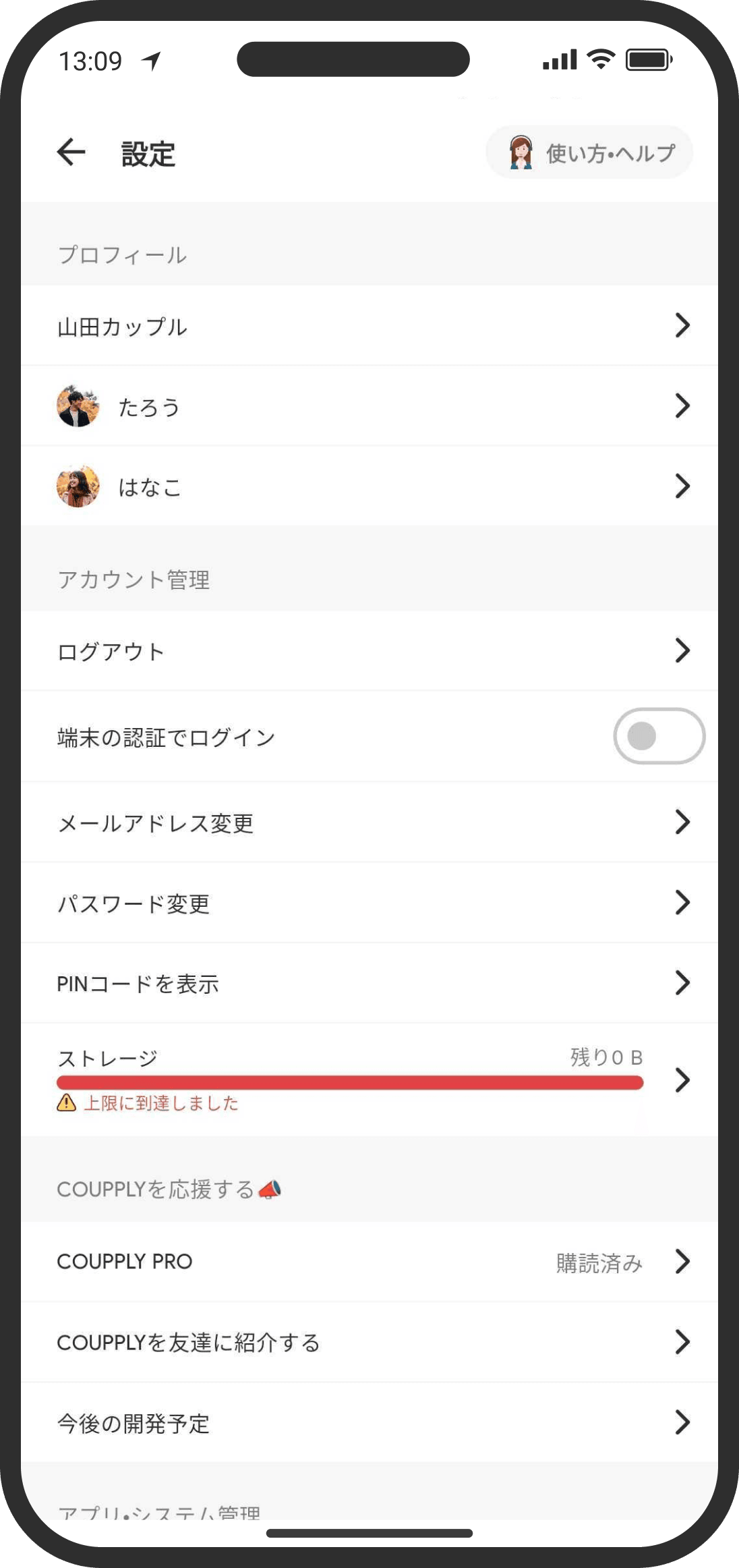
You can reach all your notification, display, and account settings from here. Fonts and the bottom menu only change on your own device and don't affect your partner.
What is it?
Change all kinds of app settings, such as notifications, display, and your account. Settings here (fonts, notifications, the bottom menu, and so on) generally apply only to you and don't affect your partner.
How to use it
- Open the Settings page from the gear icon in the top right of the Home screen.
"Profile"
- Couple profile
Set up or change your couple profile. Filling in details like your couple name, the day you started dating, whether you're married, and whether you have kids helps the counselor give advice that fits your situation. - Your profile / your partner's profile
Takes you to the user page. You can change a user's profile and more from the user page.
"Account"
- "Log Out"
- "Log In with Device Authentication" (shown only on supported devices)
Turn on login with your device's own authentication, such as face recognition, fingerprint, or passcode. It makes logging back in quicker. - "Change Email Address"
Change your email address. You'll need to enter your current password. - "Change Password"
Change your password. - "Show PIN Code"
Shows your current PIN code on screen. - "File Upload Limit (per day)"
On the free plan, there's a limit on how much you can upload per day. This is hidden while you're subscribed to COUPPLY PRO. - "Storage"
Shows how much storage you're using, based on your current plan.
"Support COUPPLY 📣"
- "COUPPLY PRO"
Takes you to the COUPPLY PRO page (where you can check plans and benefits, and subscribe). For details, see "COUPPLY PRO plans and benefits." - "Tell a Friend about COUPPLY"
Tap to share COUPPLY. - "Upcoming Features"
See COUPPLY's development plans and roadmap.
"App & System"
- "Push Notification Settings"
Turn the push notifications sent to your device on or off. You can set each type of notification separately. - "Language"
Choose the app's display language from Japanese, English, or Español. When you change it, a confirmation appears, and tapping OK restarts the app automatically. It only applies to your device and doesn't affect your partner. When you first use the app, it follows your device's language setting, but once you choose a language here, it stays that way even if you change your device's language. Traveling abroad doesn't change the display language either. If you've been using COUPPLY since an earlier version, it stays in Japanese after updating (it doesn't switch automatically, even if your device is set to English or another language). To use another language, choose it again here. If you choose a language other than Japanese, rokuyo (the traditional Japanese six-day cycle), Japanese seasonal events, Japanese era years, and the Chinese zodiac year are no longer shown, and Saturdays appear in the same color as weekdays instead of blue (anniversaries you've added yourself, red Sundays and holidays, and zodiac signs still show). Seasonal events such as Setsubun or Christmas aren't shown either, so "Event settings" on the anniversaries page and "Set up events" in the feature guide no longer appear. If your partner uses the app in Japanese and records their location or checks in, you won't get a notification about it (the location and check-in item doesn't appear in your notification settings either). Week numbers (such as Week 38) appear where rokuyo used to be. The holidays shown on the calendar are based on your "Time Zone" setting, not the language. Reactions unlocked with coins also become unavailable, and the reaction picker shows only animated emoji, emoji, and custom reactions (custom reactions work in any display language). Notifications sent to your partner, and automatic messages in the thread list and timeline (such as "sent a ..." or "created an event"), appear in the display language of the person who did it (they don't switch to your partner's language later). The counselor and other AI features reply in the app's display language (see "About the counselor" for details). Help articles are being translated one by one, and articles that haven't been translated yet appear in Japanese. - "Time Zone"
Choose the time zone the app uses. It sets how dates and times appear in the calendar and elsewhere, and which country's holidays the calendar shows. When you first use the app, it's set to your phone's time zone at that moment, so you usually don't need to change it. To change it, tap "Change," pick a time zone from the list (you can search by city), and tap OK. Choosing "Use the device setting" at the top of the list sets it back to your phone's current time zone. When you change it, a confirmation appears, and tapping OK restarts the app automatically. If your phone's time zone changes, for example when you travel abroad, the app's time zone doesn't switch on its own (and neither do the holidays). To see local times, change it here. It's separate from the display language, so changing the time zone doesn't change the language. This setting is saved to your account, so it carries over to a new phone. It doesn't affect what your partner sees in their app. - "Font Settings"
Choose the typeface (font) used in the app. There are 7 to choose from ("Device Font" / M PLUS 1P / Zen Maru Gothic / ぼくたちのゴシック2 / Noto Serif JP / Noto Sans JP / コーポレート・ロゴ). When you change it, a confirmation appears, and tapping OK restarts the app automatically. It only applies to your screen. - "Bottom Navigation"
Change the order of the menu at the bottom of the screen and show or hide tabs. In Custom mode, you choose from 8 tabs: Home, Chat, Lists, Wiki, Calendar, Memories, Map, and Timeline (Map and Timeline are hidden at first). In Default mode, you choose from 5 tabs: Home, Calendar, Memories, Map, and Timeline (all shown at first). Drag to reorder and use the switches to show or hide tabs. At least one tab must be shown. You can also pick which tab opens at launch. This setting also applies only to your device. - "Clear Cache"
Deletes the app's temporary data. It frees up space, but things you view again will need to be downloaded again. - "Version"
Shows the version of COUPPLY you're using. - "Copy Couple ID"
Copies your couple ID, which you might need when contacting support. You won't usually need it. - "Upload Settings"
Change how the photo picker (gallery) loads ("Load All" / "Load Gradually") and the compression level for uploading photos and videos ("Original" / "Light" / "Medium" / "Strong"; "Original" by default). You can compare file size and image quality for each compression level right there using a sample photo (or a photo you pick with "Try with your own photo"). Double-tap or pinch the photo to zoom in, and hold the photo on the right to see the original. "Light" and "Medium" keep the quality at a level where you can hardly tell the difference on a phone screen. This setting only applies to your device and doesn't affect your partner. Files attached via "File" and PNG and GIF images aren't compressed. - "See Fewer Irrelevant Ads" (iPhone only)
Choose in your device settings whether to allow ads based on your interests. - "Terms of Service" / "Privacy Policy" / "Licenses"
Opens each page (the Terms of Service and Privacy Policy open in your browser).
Deleting your account (at the bottom of the Settings page)
- Use the red "Delete Account" text. It can't be undone, and it affects your partner too (their account can no longer be used either). Within 30 days of deleting, you can get your account back if both of you tap "Request Recovery."
FAQ
Q. Does changing the font make the text bigger?
What changes isn't the text size but the typeface (font style). You can choose from 7, including the device font. Your choice applies only to your screen (it doesn't affect your partner), and the app restarts automatically to apply it.
Q. I can't change my email address
You need to enter your current password to change your email address. If you fail several times in a short period, you may be temporarily unable to try again. Wait a while and try again.
Q. What happens if I delete my account?
Your data is kept for 30 days after you delete your account. After 30 days, all data for your couple, you, and your partner is permanently deleted and can't be restored. It affects your partner too (their account can no longer be used either). Be sure to read the "Changing phones, transferring data, and deleting your account" help topic before deleting your account.
Q. Where do I subscribe to or cancel the paid plan (COUPPLY PRO)?
Subscribe from the "COUPPLY PRO" page in the app, and cancel from your phone's settings (App Store / Google Play). For details, see "COUPPLY PRO plans and benefits."