


Login & account
Signing up and logging in
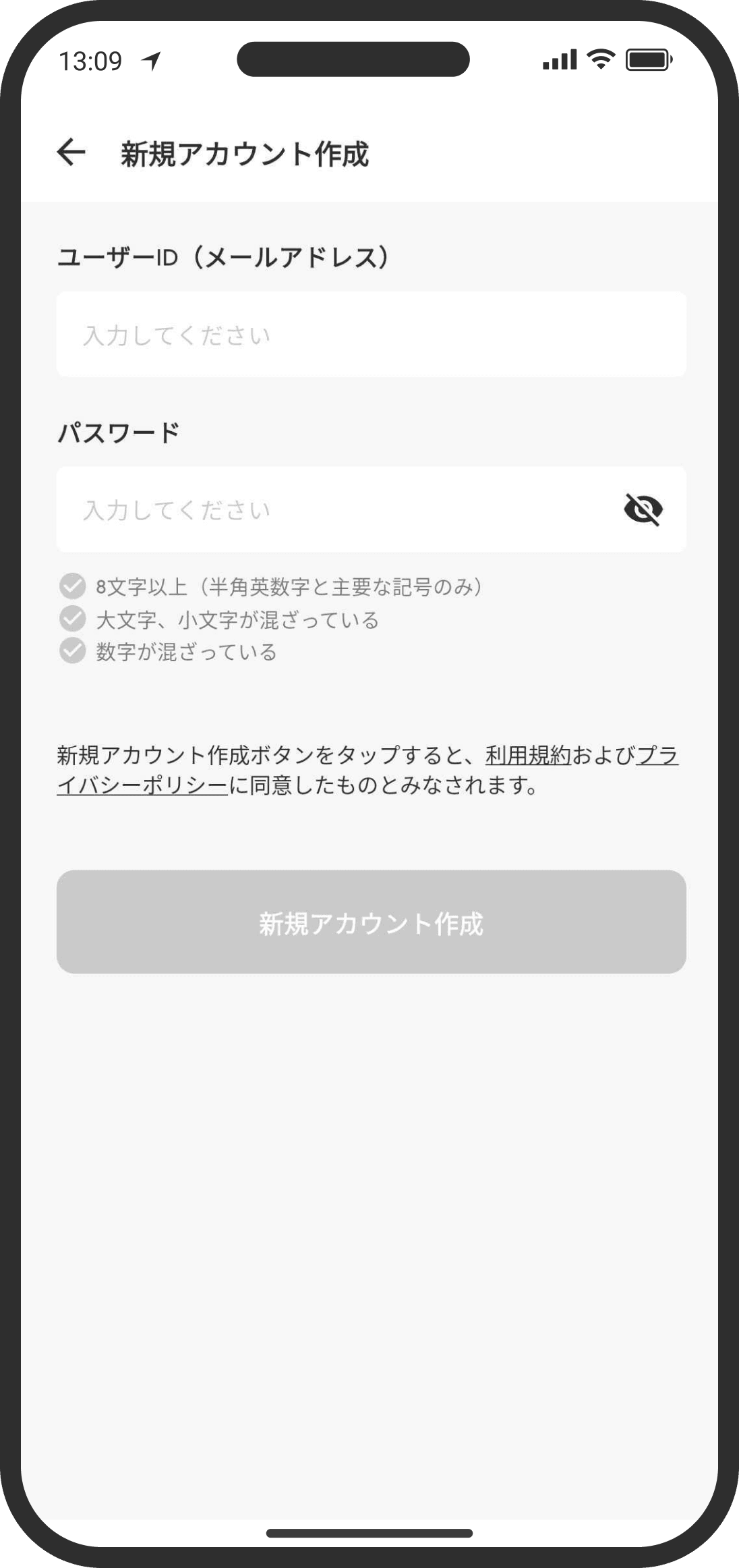
- To sign up, set an email address and password. After you register, you'll get a confirmation email. Open the link in the email and tap the verify button to complete verification.
- Your password must meet all 3 rules: "at least 8 characters," "includes both uppercase and lowercase letters," and "includes at least one number" (only letters, numbers, and common symbols can be used).
- You can change your registered email address and password from "Change Email Address" and "Change Password" in Settings. Changing your email address requires your current password.
Connecting with your partner
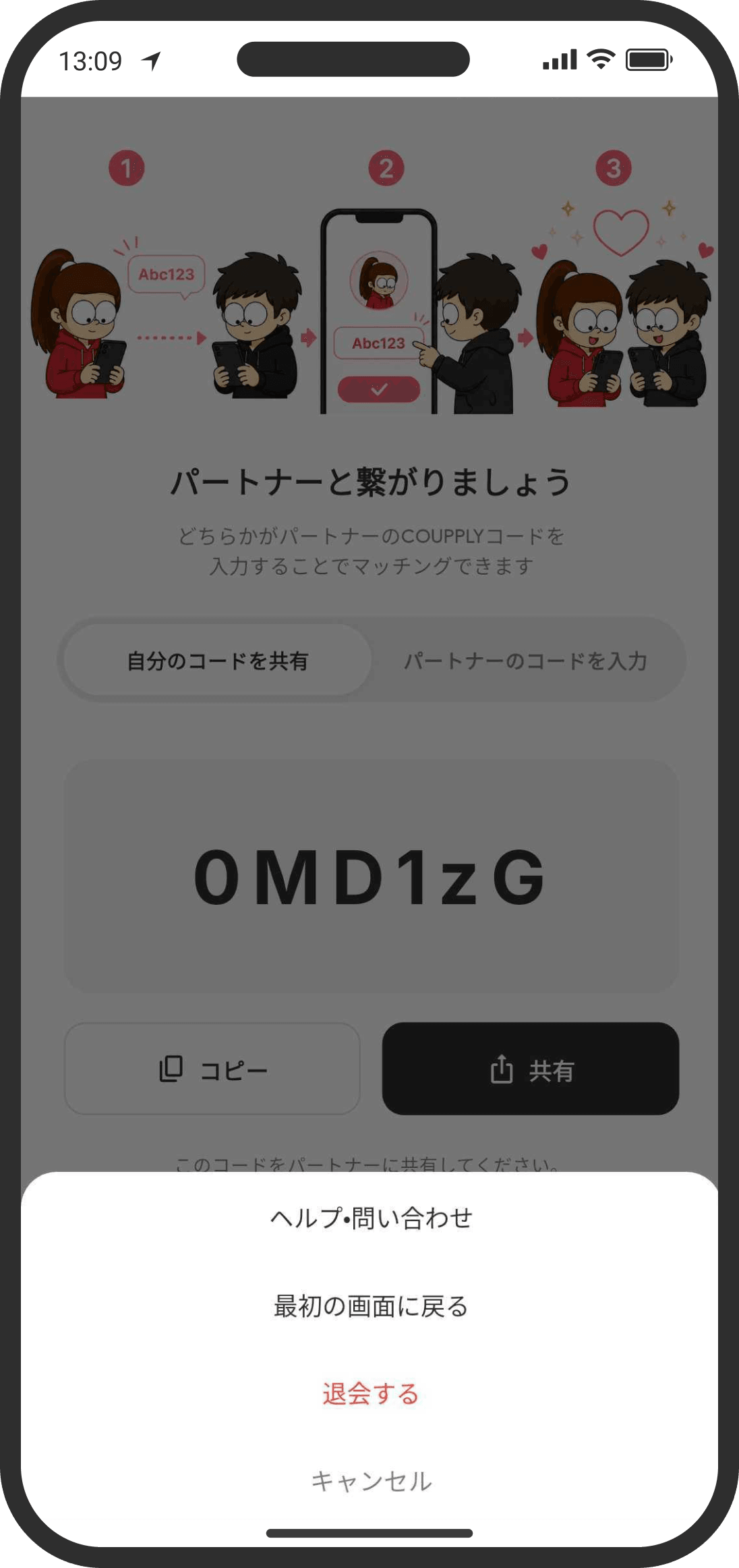
- You connect using a 6-character COUPPLY code. As soon as one of you enters the other's code, you're connected, so the other code isn't used.
- Connecting can take a few seconds to around 10–20 seconds. Try somewhere with a good connection.
Logging in with biometrics
- Turn on "Log In with Device Authentication" in Settings, and from then on you can log in with your device's authentication, such as fingerprint, face, or passcode.
Deleting your account
- Use the red "Delete Account" text at the bottom of the Settings page.
- When you delete your account, not only yours but also your partner's account can no longer be used.
- Your data is kept for 30 days after you delete your account. After 30 days, all data for both of you is permanently deleted and can't be restored.
Recovering after deleting your account
- Within 30 days of deleting your account, you can get it back from the recovery page.
- Recovery is confirmed once both of you tap the "Request Recovery" button, and you return to the Home screen.
- If only one of you taps it, "Recovery requested" stays on screen until the other person does the same.
- The recovery page also has a "Delete Permanently Now" button that deletes everything without waiting 30 days (this deletes it immediately).
FAQ
Q. Can I use COUPPLY on more than one device?
Yes. With your email address, password, and PIN code, you can use it on another device too.
Q. I registered but can't log in
Your email may not be verified yet. Open the confirmation email you got when you registered, tap the link, and then try logging in again.
Q. I keep getting logged out
For security, COUPPLY regularly refreshes your login credentials, so depending on your device and situation, you may be logged out automatically. In rare cases, our security systems may also limit access temporarily. If that happens, it clears up with time, so wait a while and try again.
Q. Can I transfer my data when I change phones?
There are steps to follow. If you just log in on the new device, you may not be able to read your past messages (because encryption keys are created on each device). This is very important, so be sure to read the "Changing phones, transferring data, and deleting your account" help topic.
Q. I forgot my PIN code
If you're logged in, you can check it under Settings → "Show PIN Code."
If you can't log in anymore but your partner can, you can recover your PIN using your partner's device with the emergency steps below.
Important: These steps are for emergencies only. If they aren't followed correctly, not only will recovery fail, but your partner may also be unable to log in to COUPPLY. Read the steps below carefully and follow them exactly. If anything is unclear, contact support.
1. First, be sure to delete COUPPLY from your device (the person who forgot the PIN and can't log in).
(Do the following steps on your partner's device, which can log in)
2. In the app's Settings, tap "Show PIN Code."
3. You'll be asked for the device's own authentication (the passcode for unlocking the device or biometrics). Once that's done, your partner's PIN code appears.
4. Tap the PIN code shown 10 times in a row.
5. A message asking "Restore your partner's encryption key?" appears. Tap "Restore."
6. A screen saying "Enter the 6-digit code" appears. Enter any 6-digit number you like (*).
Note: The code you enter here will become your new PIN code from now on.
7. Your key is recovered using the PIN you entered. Once the message closes, it's done.
(Do the following steps on your own device)
8. Reinstall the app.
9. After you log in, you'll be asked for your PIN code again. Enter the 6-digit number you entered in step 6 above.
10. Check that the app works normally.