
Calendar & events
Use reminders
Great for counting down to plans you're looking forward to, or for reminders about things that come up regularly!
What is it?
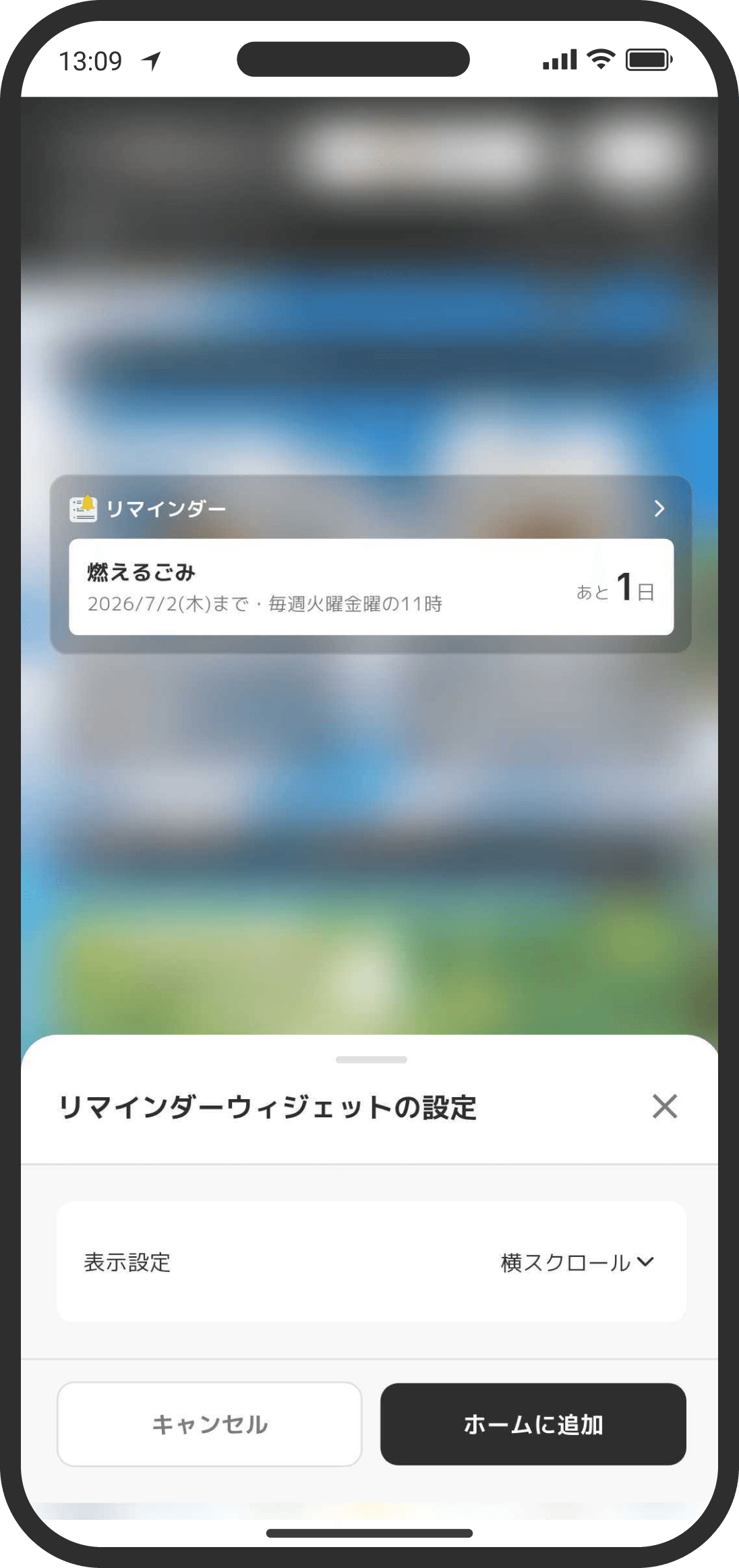
Get reminded about things you don't want to forget, like "Pay the rent" or "Book a restaurant for our anniversary," or set a due date to use it as a countdown. You can share reminders with your partner and send notifications to them too. In Default mode, find them in the "Reminders" chip on the Home card. In Custom mode, add a reminder widget to the Home screen to see them.
How to use it
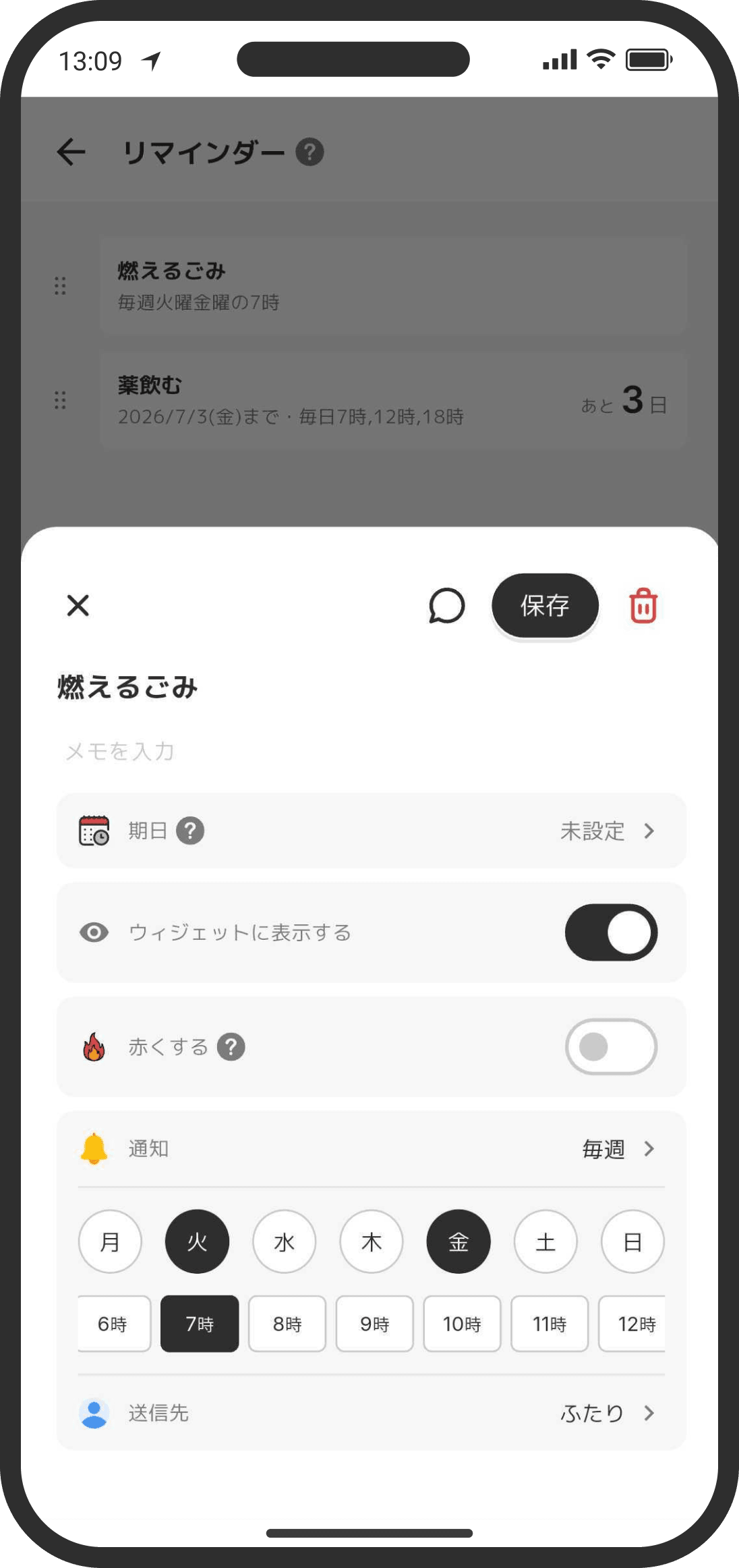
- On the reminders page, tap "+" and set the following:
- Title: Enter what you want to be reminded of, such as "Pay the rent" or "Book a restaurant."
- Memo: Add any extra notes you like.
- Due date: Set the date the reminder is for. Once you enter a due date, a countdown (how many days are left) appears.
- Show on widget: When on, the reminder shows on the Home screen ("Reminders" on the card in Default mode, or the reminder widget in Custom mode).
- Make it red: When on, the reminder shows in red on the Home screen so it stands out.
- Notification: Choose from "None / Every day / Every week / Every other week / Every month." For "Every week" and "Every other week," you can pick one or more days of the week (Monday to Sunday). For "Every month," you can pick one or more days of the month (1 to 31). You can also pick one or more notification times (12 AM to 11 PM). For example, you could set "every week on Monday and Wednesday at 7 AM and 8 AM." When you choose anything other than "None," the time starts at 8 AM. You can change it to any time you like, but you can't remove every time (without a time, no notification can be sent).
- Send to: When notifications are on, choose who gets them ("Both of us" / "Only me" / "Only my partner"). It's set to "Both of us" at first.
- You can edit your reminders on the reminders page. Drag them to reorder them however you like.