

Use iOS / Android home screen widgets
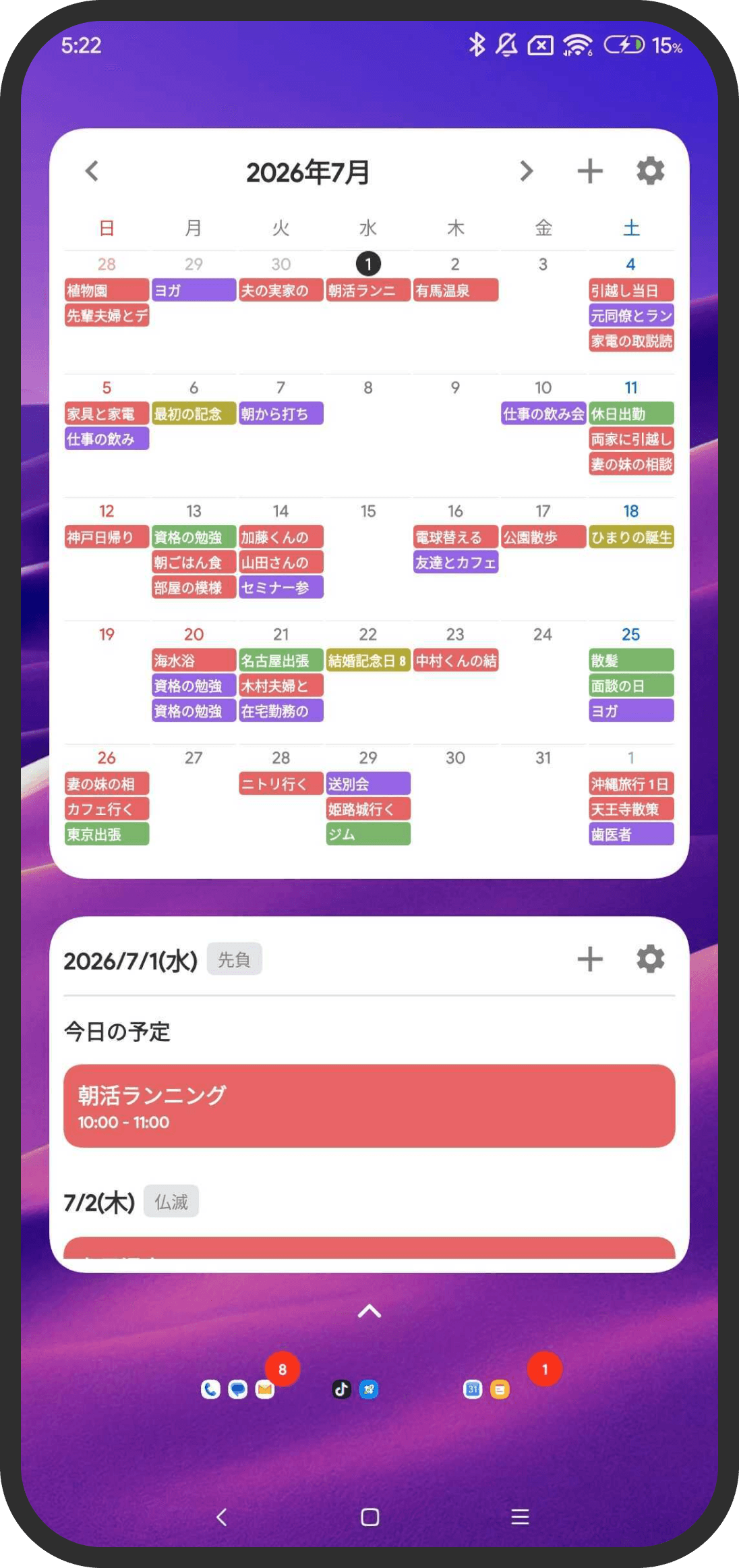
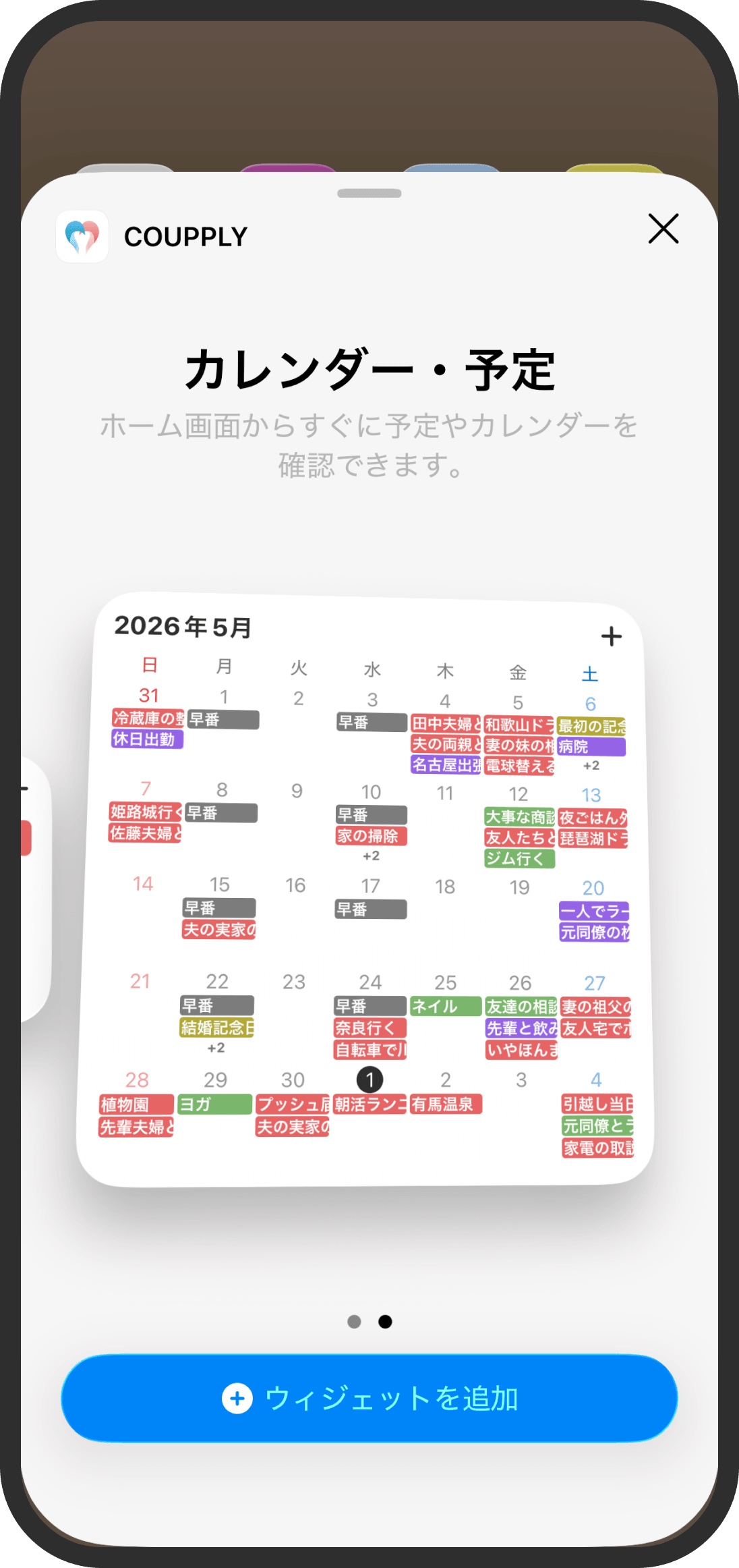
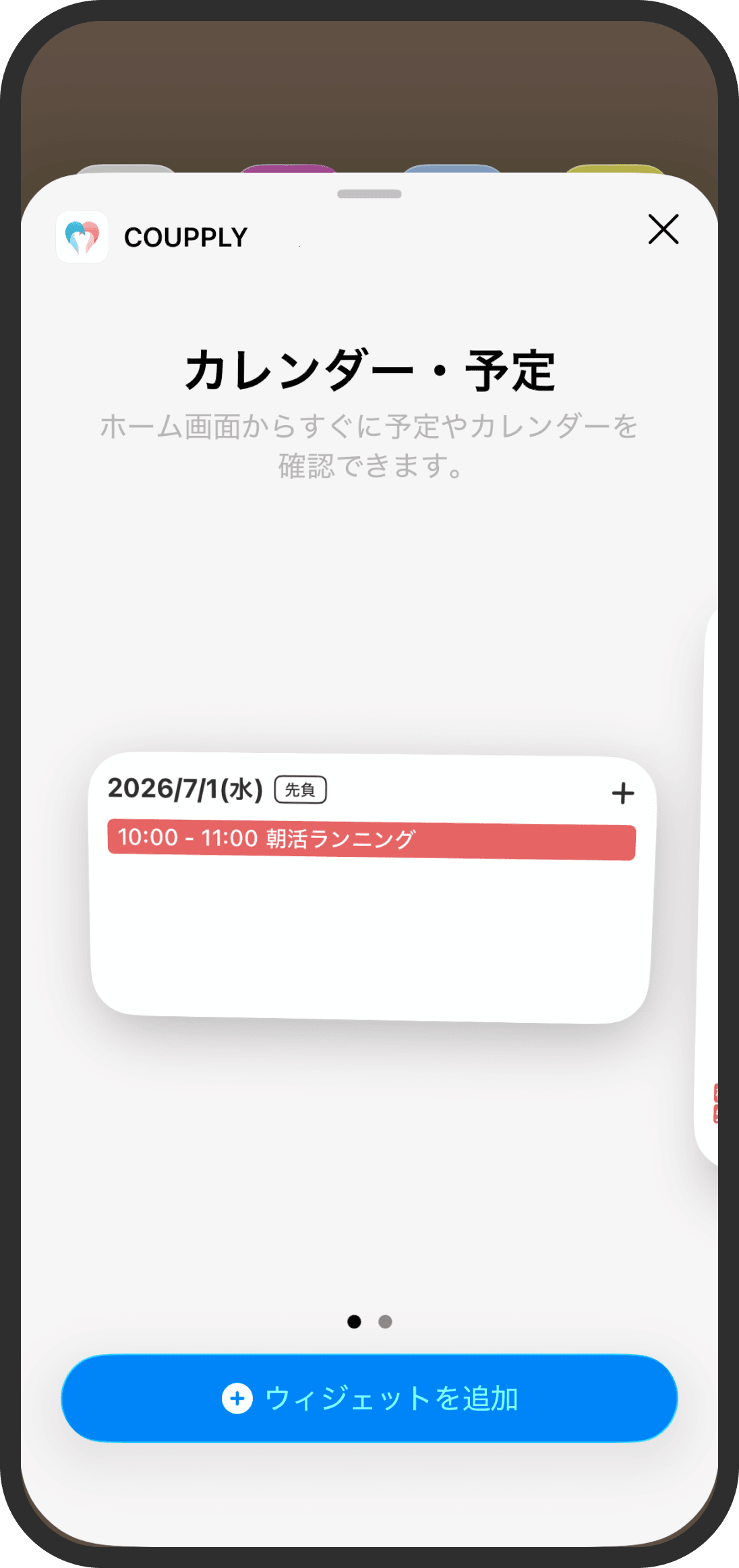
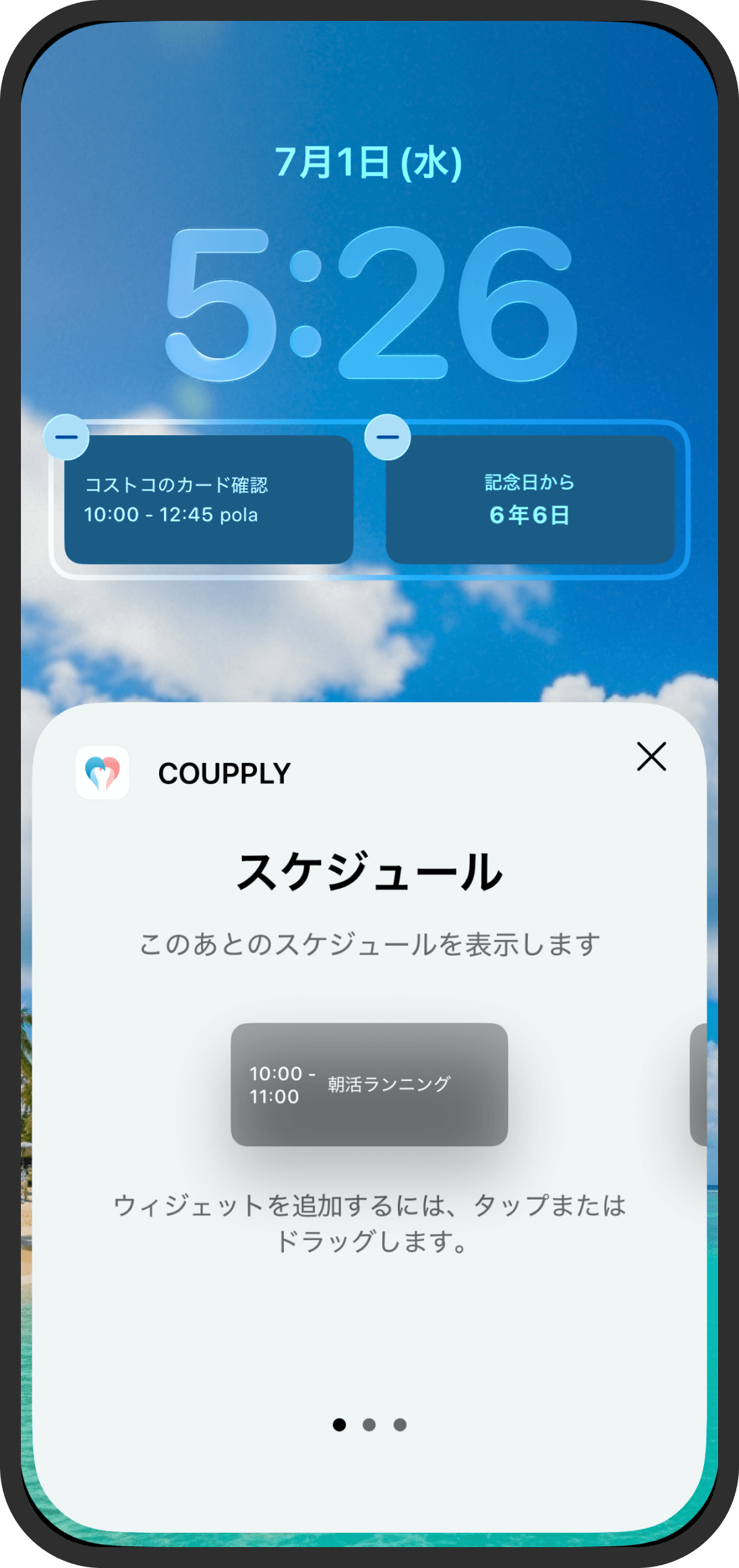
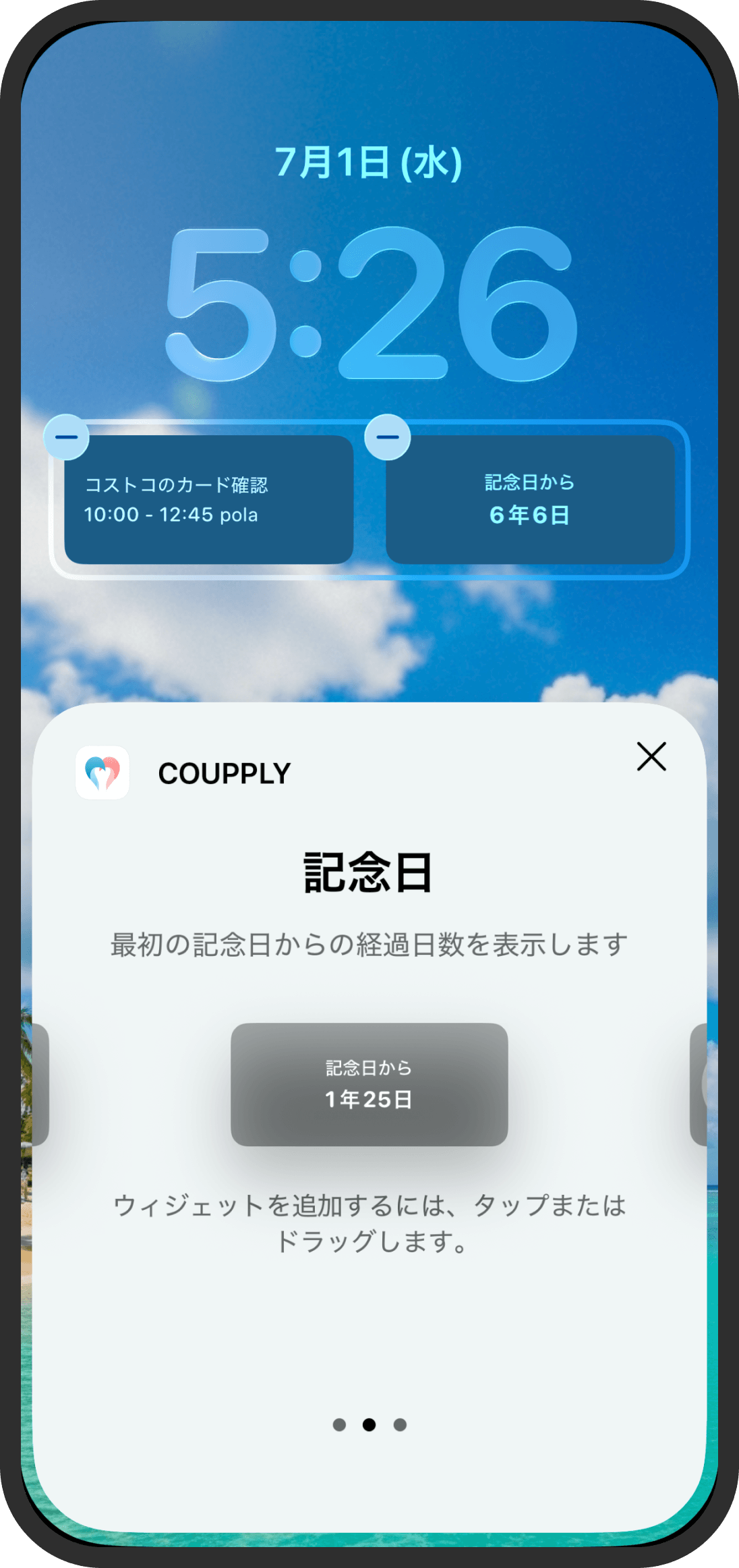
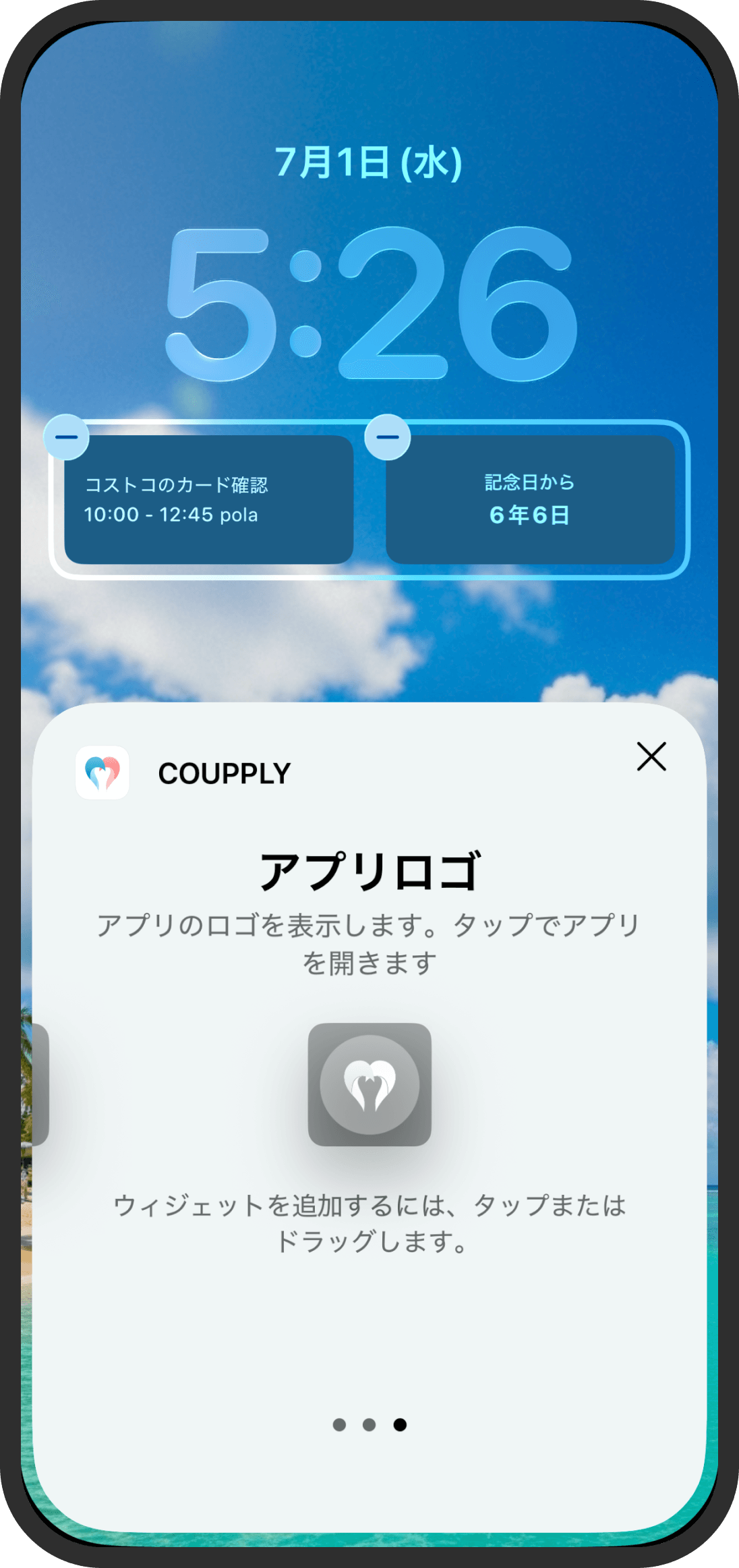
Besides the Home screen inside the app, COUPPLY also offers widgets you can place on your phone's own home screen or, on iPhone, the Lock Screen. Without opening the app, you can see your monthly calendar, today's events and how long it's been since you started dating at a glance.
What is it?
These are widgets you place on your phone's home screen (the system home screen) or your iPhone's Lock Screen. Without opening COUPPLY, they show your shared calendar, your upcoming events and how long it's been since your first anniversary. They're different from the widgets on the app's Home screen (User, Missions, Memories and so on); these are the kind you place on your phone's home screen or Lock Screen.
Available widgets
iPhone (iOS 17 or later)
- "Calendar & Events" (home screen; medium, large and extra large)
- Medium: Shows today's date, a holiday badge, and your upcoming events in a list (up to 5 timed events, or up to 4 if there's an all-day event). Tap "+" to jump to adding an event for today.
- Large and extra large: A monthly calendar covering 5 weeks. Each day shows its events as colored pills ("+N" when they don't all fit). Sundays are red, and today's date is circled. Tap "+" to jump to adding an event for today.
- Follows light and dark mode automatically.
- Press and hold → "Edit Widget" to turn "Show only my events and our shared events" on or off.
- "Schedule" (Lock Screen; rectangular): Shows up to 3 upcoming all-day and timed events (or 1 all-day row plus 2 timed events).
- "Anniversary" (Lock Screen; rectangular): Shows "Since our anniversary" and how long it's been since your first anniversary. It uses the anniversary set as "Our anniversary" on the anniversaries page.
- "App Logo" (Lock Screen; circular): A simple widget that just shows the COUPPLY icon. Tap it to open the app.
Android
- "Calendar": A monthly calendar covering 5 weeks. The default size is 4×4 cells (192×192 dp), and you can resize it. Tap a date to jump to that day's events.
- "Schedule": Shows your events for 2 weeks starting today, day by day. The default size is 4×2 cells (130×40 dp), and you can resize it. Tap "+" in the header to jump to adding an event for today, or "+" on a date to add an event for that day.
- A settings screen opens when you add a widget: Choose a theme (light or dark) and which calendars to show (couple, your own or your partner's events, or custom calendars), then tap "Save." You can open the same screen again later from the gear icon (settings) to make changes.
How to use it (adding a widget in general)
The exact steps vary by device and OS version, so the surest way is to check your device's manual or search for "how to add widgets" with your phone model's name. In general, you can add one like this:
- iPhone (iOS): Press and hold an empty spot on the home screen → when the screen enters edit mode, tap "+" at the top left → find and tap "COUPPLY" (or "Coupply") in the widget list → swipe left or right to choose a size and tap "Add Widget." For Lock Screen widgets, press and hold the Lock Screen → "Customize" → tap the Lock Screen area → "Add Widgets," and do the same. After placing a widget on the home screen, press and hold it → "Edit Widget" to choose which events to show.
- Android: Press and hold an empty spot on the home screen → choose "Widgets" from the menu → find "COUPPLY" (or "Coupply") in the list and press and hold it → drag it wherever you like on the home screen → on the settings screen, choose a theme and which calendars to show, then tap "Save."
FAQ
Q. My widget takes a long time to update, or it's out of date
Widgets are updated when your calendar events change while the COUPPLY app is open. If you haven't opened the app in a while, events your partner added may not show up right away. If you added or changed an event and it's not showing, first try opening the COUPPLY app. The app fetches the new data and writes it to the widget automatically.
If it still doesn't update, try waiting a little while, restarting your phone, or removing the widget and adding it again (your phone also refreshes it in the background at least once a day).
Q. My partner's events or custom calendars don't appear
You can choose which calendars a widget shows.
- iPhone: Press and hold the "Calendar & Events" widget → "Edit Widget" and turn "Show only my events and our shared events" on or off to show or hide your partner's personal events.
- Android: Check the calendars you want to show on the settings screen that appears when you place the widget, or from the gear icon on the "Schedule" widget.
Q. COUPPLY doesn't appear in the widget list
Update the COUPPLY app to the latest version, open it once and finish logging in, then check the widget list again. iPhone widgets require iOS 17 or later.
Q. I want to change the order of the days or the language in the widget
The order of the days (starting on Sunday, Monday and so on) follows "..." at the top right of the app's calendar → "Calendar display" → "First day of the week." The days, months and dates, and text like "Today" and "No events," follow the app's display language (Settings → "Language") — for example, "October 2026" and "Today" in English. Changes show up in the widget right away. This is a setting just for your device and doesn't affect your partner's widgets.
Only the widget names and descriptions in the widget list (and, on Android, the preview) follow your phone's language setting rather than the app's.
Q. Can I put a widget on the Lock Screen?
On iPhone (iOS), there are 3 Lock Screen widgets: "Schedule" (rectangular), "Anniversary" (rectangular) and "App Logo" (circular). Whether you can add widgets to the Lock Screen on Android depends on your device and launcher (home screen app), so check your device's manual.
Q. The "Anniversary" widget doesn't show a number of days, or it shows a different anniversary
The Anniversary widget shows how long it's been since the anniversary set as "Our anniversary" on the anniversaries page. To change what it shows, set the right anniversary again on the anniversaries page.