
Home screen settings & widgets
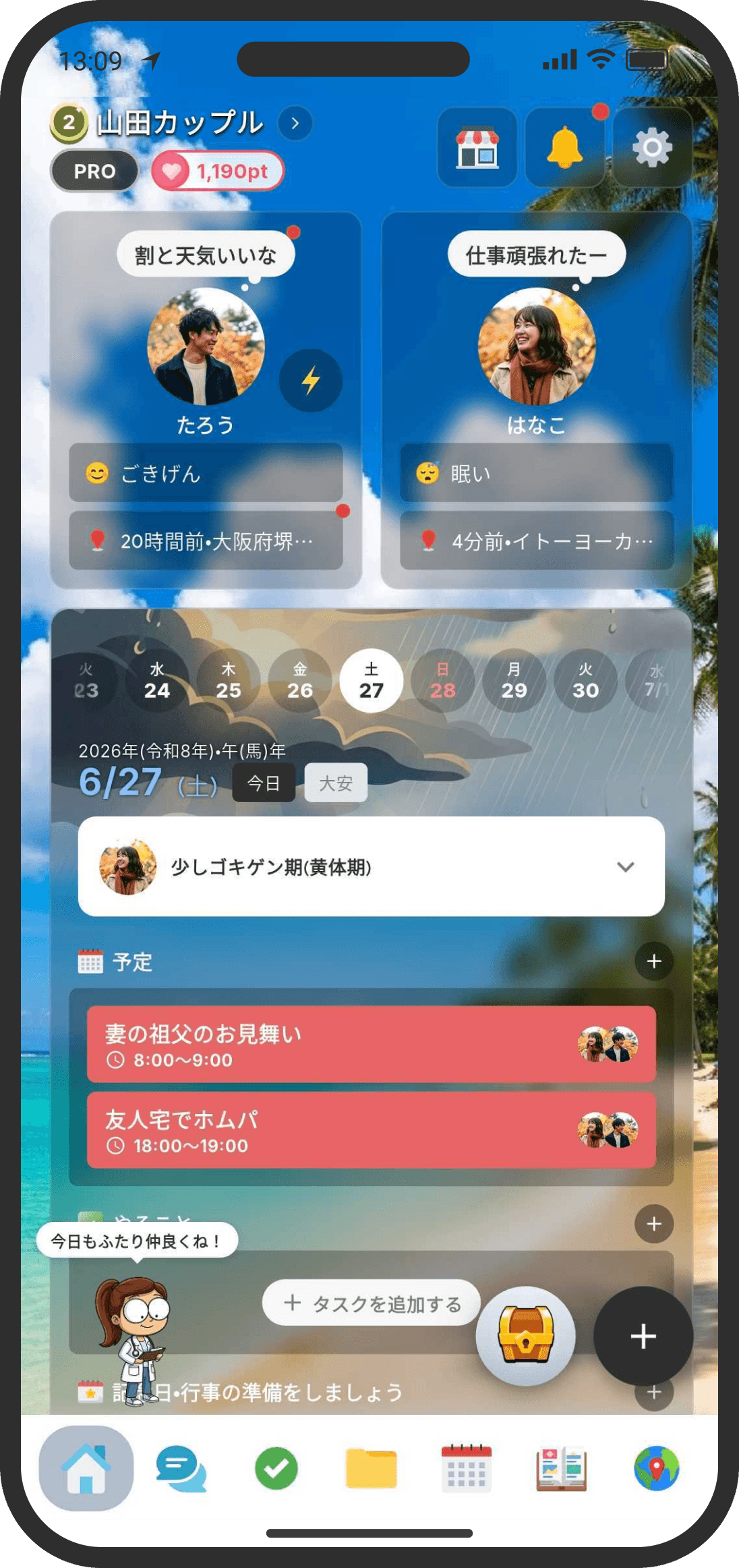
Line up the info you care about and use a favorite photo as the background to make a Home screen that's all yours.
What is it?
Arrange the widgets you like on your Home screen and customize it freely. At first, five widgets are shown: "User," "Calendar," "Reminders," "Memories" and "Missions." From there, you can add, reorder and hide widgets as you like.
> This feature is only available in Custom mode. The Home screen in Default mode has a fixed layout, so you can't add widgets or change the background (you can only reorder the counselor's speech bubble, the cards for events and more, and "Top"). To use this feature, go to Settings → "App & System" → "Home Screen Mode" and switch to "Custom" (see "Home screen mode").
Enter edit mode
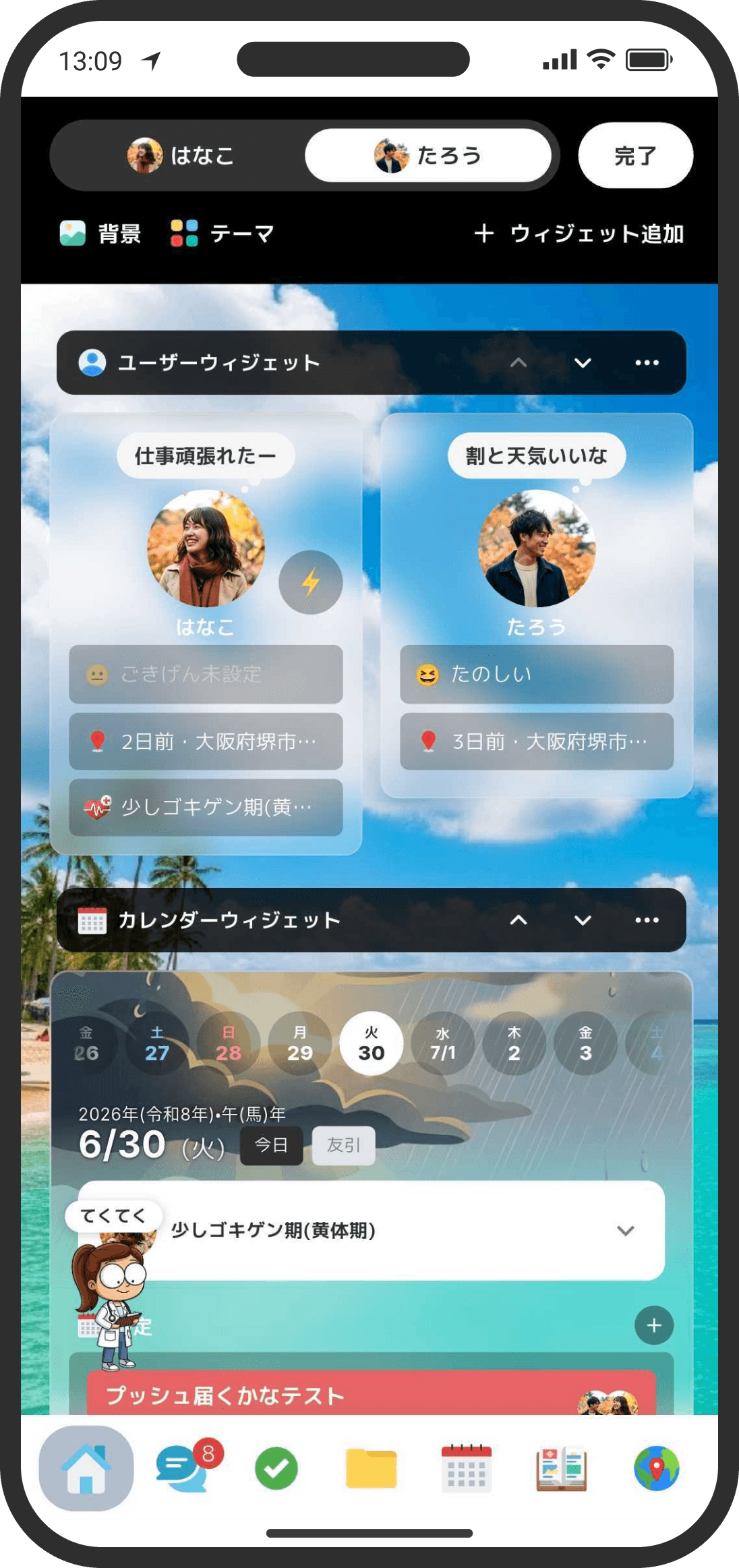
- Scroll to the bottom of the Home screen to find the "Home Screen Settings" button. Tap it to enter edit mode.
- You can only edit your own Home screen. Your partner sets up their own.
Apply a template
- Tap "Apply Template" at the top left in edit mode to choose between two templates: "Default" and "Simple."
- Default: Goes back to the original layout (User, Calendar, Reminders, Memories and Missions).
- Simple: Switches to a layout with less information (User, 3-day schedule, Reminders, Upcoming Anniversaries, and a page list). The "Pages" section at the bottom shows all your threads and lists that aren't archived. Widget backgrounds also switch to a calm dark color, and your Home character stays in the bottom left instead of walking around. Note: "Simple" here is the name of a widget template in Custom mode. It's different from the "Default" and "Custom" Home screen modes.
- Applying a template replaces your current widget layout and theme (you'll be asked to confirm first). After applying it, you can still add, reorder and change widget settings freely.
Add widgets
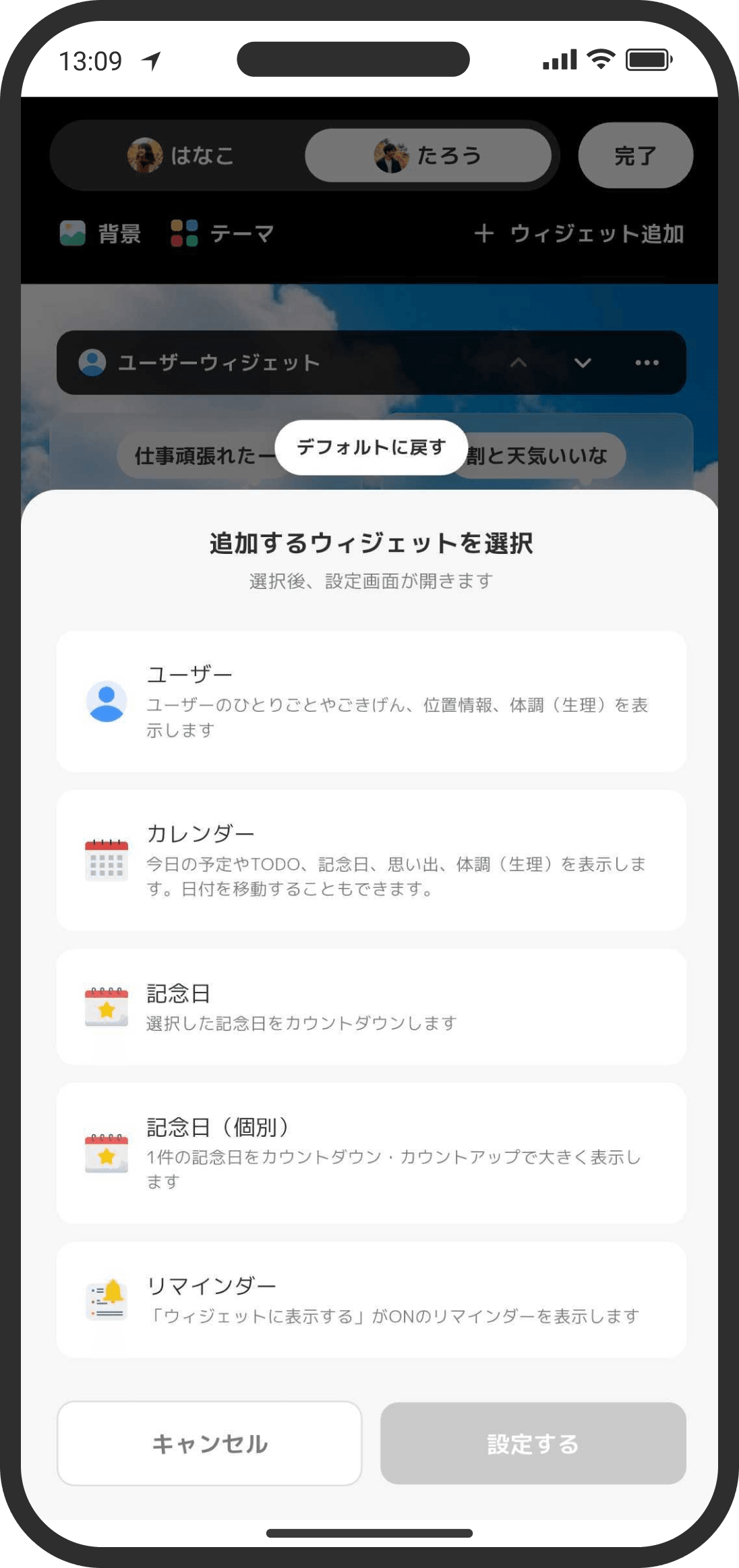
- Tap "+ Add Widget" at the top right in edit mode to see the widgets you can add. You can add the same widget more than once.
- Tap a widget type to select it (tapping alone doesn't add it), check its settings, then tap "OK" to add it.
- Use the "Reset to Default" button at the top of the add widget screen to go back to the original layout.
- There are 14 widgets in all.
- User: Shows your icons, moods, status updates, period days and more in one card. You can turn each item on or off. We recommend always keeping this one on your Home screen.
- Calendar: Shows today's events, to-dos, anniversaries, memories and condition together (memories are hidden at first; turn them on in the widget's settings). Switch between "Weekly calendar" and "3-day schedule" (today, tomorrow and the day after, side by side). In the 3-day view, tap a date to open that day's details.
- Anniversaries: Counts down to the anniversaries you choose (you can choose several), with the nearest one first. Switch between "Stacked" and "Horizontal scroll" (a compact single row).
- Anniversary (single): Shows one anniversary in large type. Switch between counting down and counting up.
- Upcoming Anniversaries: Shows countdowns to anniversaries coming up soon. You don't need to choose any: your saved anniversaries are listed automatically, nearest first. Yearly anniversaries appear from 1 month before, and monthly anniversaries from 2 weeks before. Switch between "Stacked" and "Horizontal scroll" (a compact single row).
- Reminders: Lists reminders that have "Show on widget" turned on. Switch between "Stacked" and "Horizontal scroll."
- Period Tracker: Shows when your next period is expected and how your condition may change with your cycle. It can show your partner's condition too.
- Memories: Shows one random memory or photo. Under "Content to Show," choose "Memories only," "Memories and items" or "Items only," so you can show just photos even if you don't have many memories yet. Switch between "Wide" and "Square." You can also set a fallback background image.
- Shortcuts: Line up the threads, lists and Wiki pages you use most. You can change the header icon and title too.
- Thread: Puts a thread of your choice right on your Home screen. Turn on "Show unread messages only" to show only unread messages, or turn it off to show the latest 10.
- List: Shows what's in a specific list. You can show or hide completed tasks.
- Memo: Shows a specific memo. Choose "Scroll" (keeps the widget short and scrolls inside it) or "Full text."
- Data: Shows a specific data page. You can also choose "Scroll" or "Full text."
- Missions: Shows missions you haven't completed yet. Choose "Scroll" or "Show all." When you've completed them all, it says "All missions completed." Your streak progress is shown at the top right.
Reorder, set up or hide widgets
- Press and hold a widget to open its menu. In edit mode, the menu also opens when you tap a widget or its "..." menu button.
- Move Up / Move Down: Changes the order.
- Widget Settings: Changes each widget's detailed settings (items to show, which data to show, scroll or full text, and so on).
- Hide Widget: Removes that widget (you can bring it back later with "Add Widget").
Change the Home background
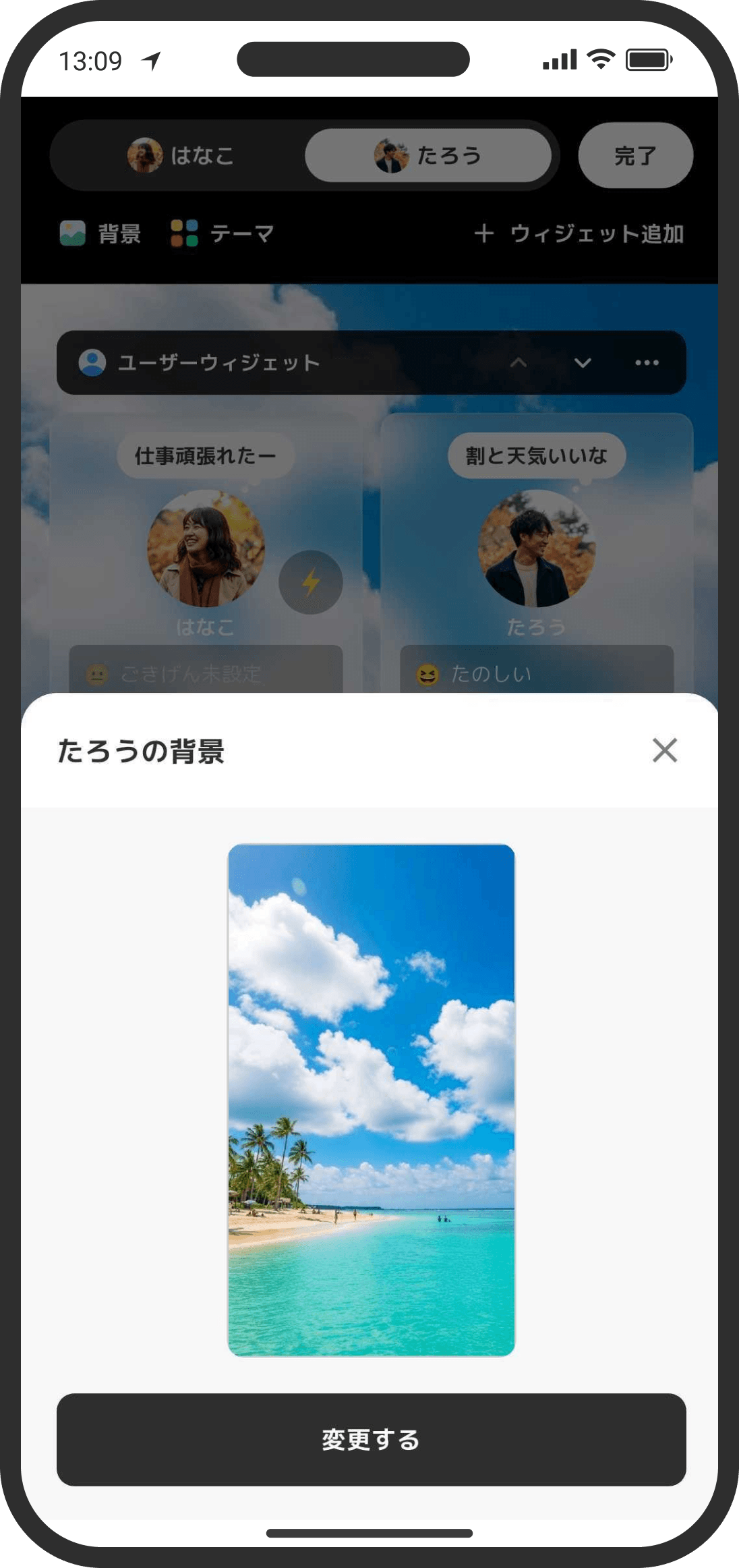
- Tap the "Background" button at the top left in edit mode to change your Home screen background.
- Choose a Background Color: Pick any solid color from the color palette as your background.
- Choose from Backgrounds: Switch to a background you got in the store.
- Upload: Upload an image and set it as your background.
- Random from Memories: Shows a random image uploaded to your memories.
Change the theme
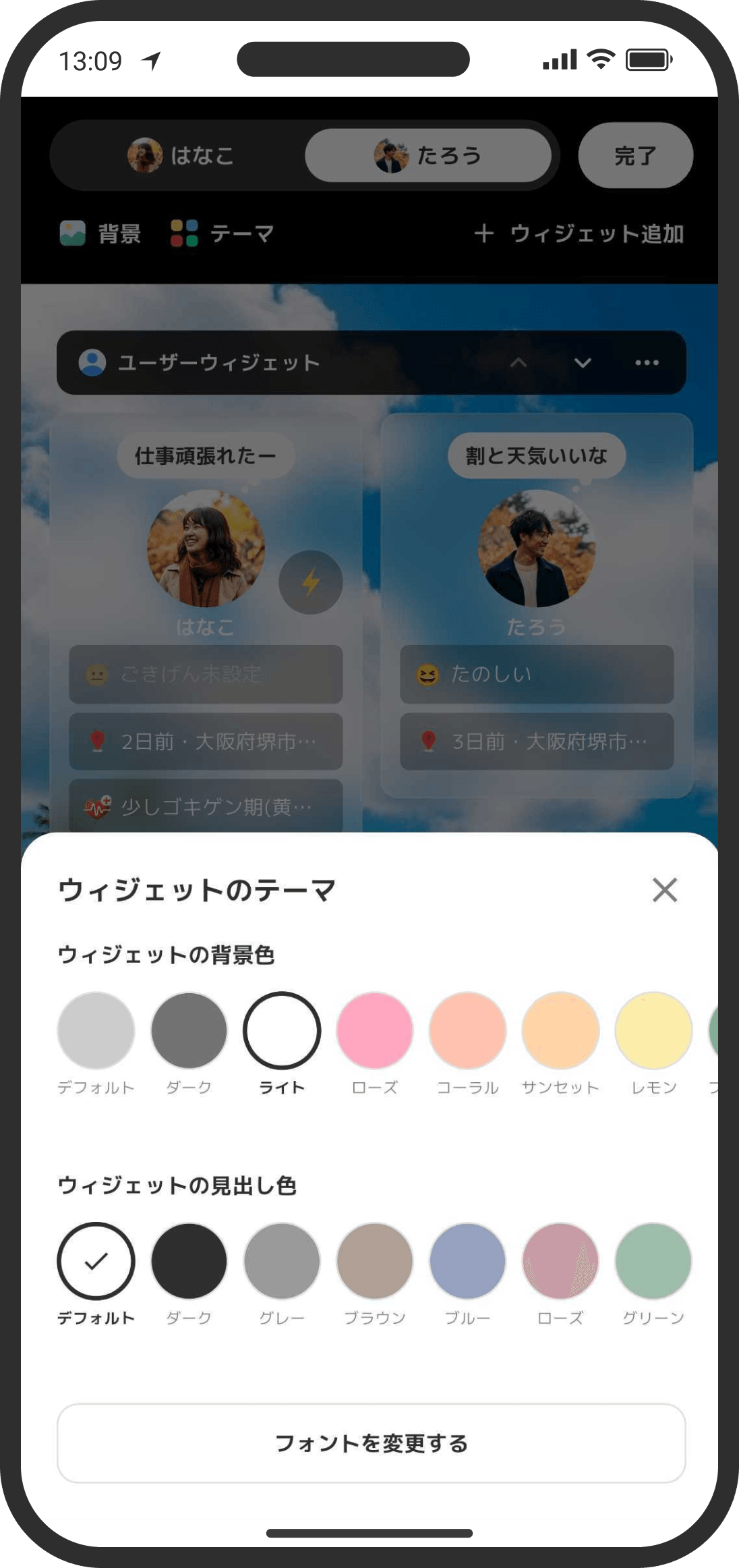
- Change the color of your Home screen widgets, the text color of widget headings, and the font.
- Widget Background Color: Choose one of the ready-made themes, or tap "Custom" at the far right to pick any color, blur and transparency you like.
- Widget Heading Color: Change the color of some of the text in widgets, for example if the text became hard to read after you changed the widget color.
- Change Font: Change the font (typeface). The app restarts when you change the font.
FAQ
Q. "News from COUPPLY" appeared at the very top of Home
It appears at the top of Home automatically only when there's new news from the COUPPLY team (it isn't in the list of widgets you can add). Tap it to open the "From COUPPLY" tab in the timeline and read the news. Once you open the tab, it's marked as read and disappears from Home until the next new item arrives. Whether you've read it is recorded only for you (per account) and doesn't affect your partner.
Q. Some news is marked "Survey"
That's a survey from the COUPPLY team. In the "From COUPPLY" tab of the timeline, the card is marked "Survey." Tap it to see the questions and answer fields. Write your answers to the questions you'd like to answer and tap "Submit answers" to send them. Questions not marked "Optional" must all be filled in before you can tap the submit button. There's a "Before you answer" note above the submit button, so take a look before you send.
Q. Can my partner or anyone else see my survey answers?
Your partner can't see your answers, and they don't get a notification.
Q. Will my partner be notified when I answer a survey?
No. Neither your partner nor anyone else is told that you answered a survey. It isn't recorded in the timeline either.
Q. Is the info I've registered sent along with my survey answers?
Yes. To help us analyze the answers, some info you've already registered in the app is saved with your answers: your birth year (used for your age), gender, the region you live in, how long you've been together, whether you're married, living together, long-distance or have kids, the date you signed up for COUPPLY, whether you use PRO, and your app version. It's used to understand trends, like "people in their 30s feel this way," and is never shown to other users.
Q. I want to rewrite or take back survey answers I sent
Sorry, once you send your answers, you can't rewrite or take them back. Each person can answer a survey only once. After you send it, it shows "Answered" and the answer fields no longer appear. A confirmation screen appears when you tap the submit button, so check your answers carefully there before sending.
Q. What should I write in a survey? Is there anything I shouldn't write?
Feel free to write whatever you think. Just don't include personal info like your name, phone number, email address or home address. The COUPPLY team reads the answers to improve the service and doesn't need any personal info.
Q. Can both my partner and I answer?
Yes. Each person can answer once, so you can each answer separately. Neither of you can see what the other wrote.
Q. I switched to a language other than Japanese and now I see less news, or none at all
News is delivered separately for each app display language. News sent only in Japanese, such as campaigns just for Japan, doesn't appear when the display language isn't Japanese (you'll never see untranslated Japanese news). Switch the display language back to Japanese to see it. This depends on the app's display language, not the country you live in.
Q. What happens if I don't answer a survey?
Nothing. Surveys are optional. It's fine to close one without answering, and you can read it again anytime, just like regular news.
Q. If I reorder my widgets, will my partner's Home screen change too?
No. Your Home screen and your partner's each keep their own widget order and settings. Your partner sets up their own Home screen.
Q. Can I bring back a widget I hid?
Yes. Add it again from "Add Widget" in edit mode. It's added at the very bottom.
Q. I want to go back to the original layout
Tap the "Reset to Default" button at the top of the add widget sheet.
Q. Will adding widgets slow down Home?
It can. The more widgets you add, the more data the Home screen has to load and display, so it may get slower. This varies with your device and network.