

Home screen mode (Default / Custom)
If you're not sure, just stay with "Default." You can switch anytime, and switching never deletes your data.
What is it?
The Home screen has two modes: "Default" and "Custom." It starts in "Default."
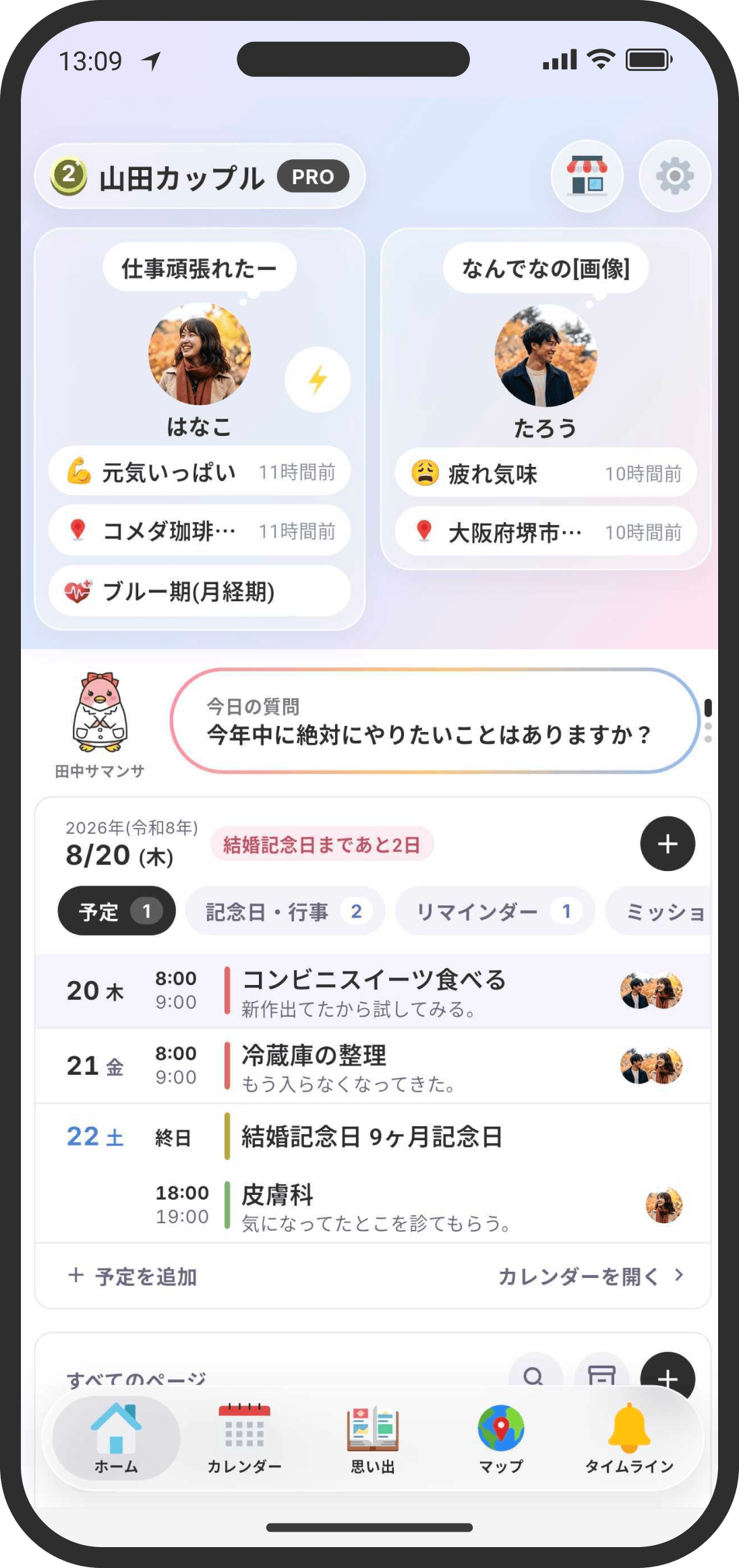
- Default: Chats (threads), lists and the Wiki appear together under "Top" on Home. You can open anything from one place without thinking about its type.
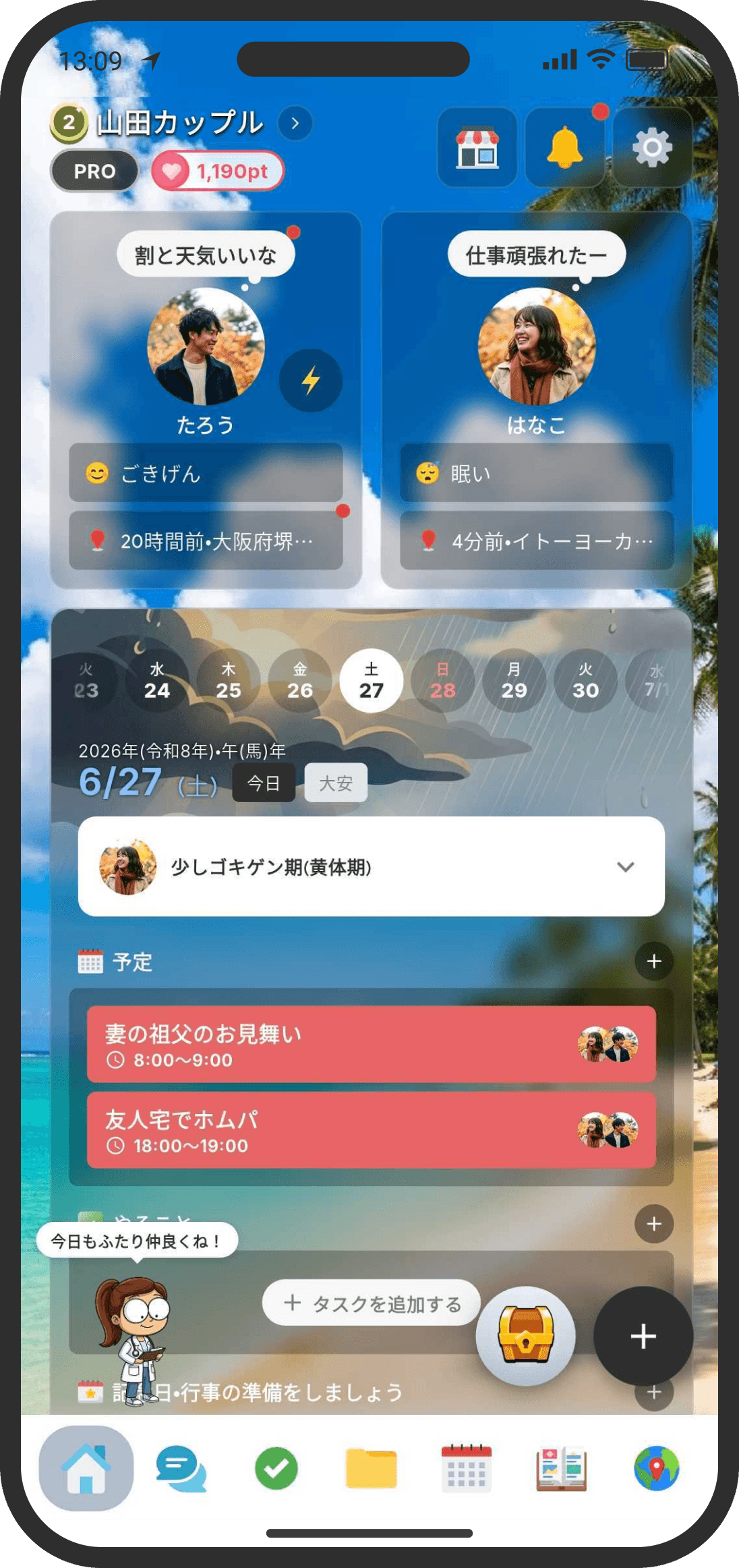
- Custom: Things are split into tabs: "Chat," "Lists" and "Wiki." You can organize each type with categories, and freely set a background photo and widgets.
How to use it
- Choose from Settings (the gear icon at the top right of the Home screen) → "App & System" → "Home Screen Mode." Your Home screen switches right away.
- The Home screen mode is just your setting. Your partner's screen doesn't change.
FAQ
Q. Which one should I choose?
We recommend Default. New features are designed with Default in mind. As your chats and lists grow, you can sort them into folders. Custom mode will be retired in the future, so if you already use it, please consider switching to Default.
Q. What happens to the pages and widgets I made when I switch modes?
They stay as they are. Only the way things are shown changes. Your data, folders and categories, background photo and widget settings aren't deleted. Switch back to the other mode and you can use them again.
Q. There are no "Chat" or "Lists" tabs in Default mode. Where do I open them?
Chats, lists and the Wiki all appear together under "Top" on the Home screen. You can also search all your pages at once with the magnifying glass to the right of the heading.
Q. What happens to thread categories and list categories in Default mode?
Categories aren't available in Default mode (your settings aren't deleted, so you can use them again when you switch back to Custom mode). Instead, organize things in folders.
Q. I want to go back to the previous Home screen
Use "Go Back to the Old Version" in the black notice at the very top of Default mode. Even after you close the notice, you can switch anytime from Settings → "App & System" → "Home Screen Mode."
Q. There's a red dot at the top right of a chip on a Default mode card
A small red dot appears on the "Anniversaries," "Reminders" or "Missions" chip when there's something you haven't opened yet (a newly added anniversary or reminder, that day's missions, and so on). Tap the chip to see what's there and the dot goes away. It doesn't appear just because an anniversary or reminder was deleted or dropped off the list after its date passed. Whether you've seen it is remembered only on this device, so the red dot on your partner's screen doesn't go away (and your partner isn't told that you saw it or sent a notification).
Q. "How do you like COUPPLY?" showed up on my Home screen
This card asks how you're finding the app. If you tap "Love it!", the App Store or Google Play rating screen may appear. We'd be happy if you left us a star rating. You can also tap "Not great" or close the card with the × at the top right. Whichever you tap, the card disappears and won't be shown again. Your partner can't see how you answered and doesn't get a notification.